Nothing is more distracting than a glitchy monitor screen. It can be a frustrating experience whether you’re gaming or working from home. When something like this occurs, many users ask, “Why is my monitor flickering?” If there were a straightforward answer, it would make life much easier, but it could be due to several reasons. Fortunately, many solutions can fix it to help you get your monitor back up and running.
A common reason why your monitor is flickering is due to the refresh rate. A monitor’s refresh rate is how often it updates the image on the screen per second. If this rate is too low, you’ll likely experience glitching.
Some users adjust their refresh rate to minimize screen tearing, especially when gaming. For instance, if you have a professional gaming monitor, experts suggest maintaining a refresh rate of 240Hz, while 60Hz is best for casual gaming.
You can fix the refresh rate by following these steps:
1. Go to settings: Open the Settings app on Windows 11 by pressing Windows + I.
2. Navigate the System > Display: Once in Settings, click on System, then Display.
3. Advanced Display settings: Scroll down to select Advanced Display.
4. Choose the right refresh rate: Under Choose a refresh rate, select the highest rate compatible with your monitor.

If the flickering continues, double-check your display specifications to ensure you’ve set the refresh rate correctly. This quick adjustment often resolves the issues, making your screen flickering on Windows 11 a thing of the past.
A loose or damaged cable could easily be the culprit. With over 10 billion HDMI devices shipped since their introduction, these cables are everywhere. However, DisplayPort connectors are also widely used, especially for high-performance monitors. Whether you’re using HDMI, DisplayPort, VGA or DVI cables, a shaky or worn-out connection can interrupt the data stream between your computer and monitor.
Use the following tips to check and fix cables:
Another reason your monitor is blinking could be your graphics drivers. Graphics drivers are crucial for smooth display performance, as they help your computer’s operating system communicate with the monitor.
Yet, when these drivers become outdated or corrupt, they can cause various display issues. Therefore, you may need to update or reinstall graphics drivers to ensure compatibility and stability. With up-to-date drivers, you can maintain a steady screen and improve your overall viewing experience.
Here are the step-by-step directions for updating or reinstalling graphics drivers:
1. Check for driver updates: Open Device Manager by right-clicking the Start button and selecting Device Manager. Next, expand the Display adapters section, right-click your graphics card and select Update driver. Choose Search automatically for drivers to let Windows search for any available updates.

2. Reinstall the graphics driver: If the first step doesn’t fix the issue, right-click on your graphics card again and select Uninstall device. Restart your computer so Windows can automatically reinstall the driver upon reboot. This step often resolves any corrupted files.
3. Consider rolling back: If you recently updated your driver and started experiencing glitching, the latest driver version may be unstable for your system. In that case, try right-clicking the driver, choosing Properties, then going to the Driver tab and selecting Roll Back Driver.
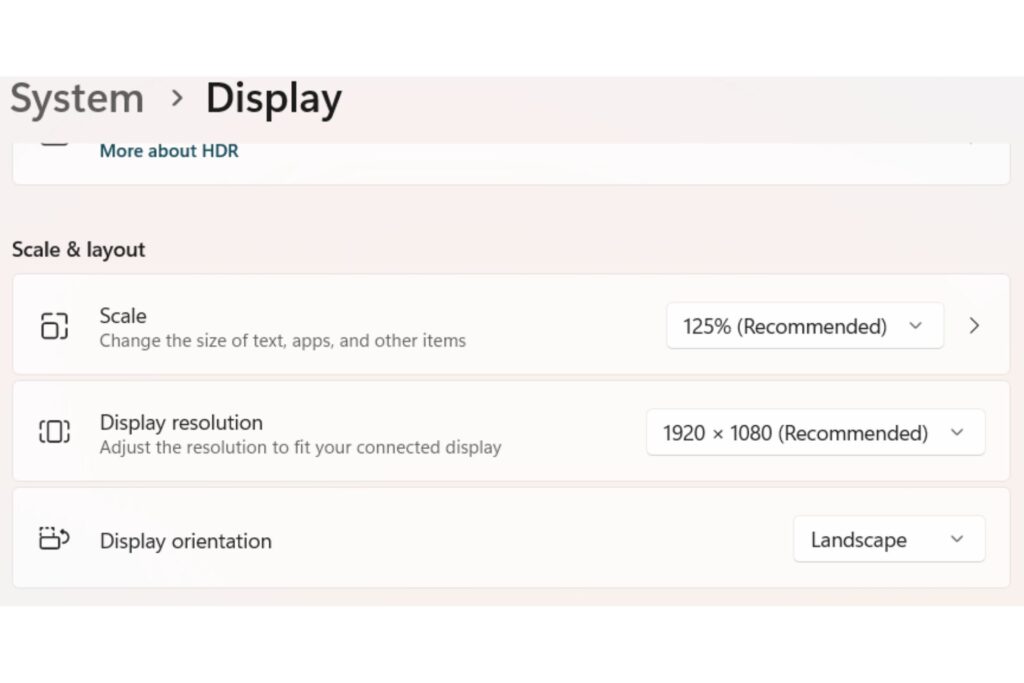
Settings like resolution and scaling can cause flickering if they don’t match your monitor’s specifications. This is because the Display can struggle to render content correctly. This can be especially noticeable on Windows 11, where default display settings might not always be ideal for every monitor. For instance, an ultrawide monitor typically offers a 21:9 aspect ratio, which may require specific resolution and scaling to maintain clarity.
However, you can fix this issue by adjusting display settings for stability:
If you’re still asking, “Why is my monitor flickering?”, it may be time to consider whether hardware issues are to blame. Like any other electronic device, monitors can experience wear and tear over time, especially if used frequently. Internal hardware malfunctions or the effects of aging can lead to pixelating, color distortion, or temporary blackouts on the screen.
To check hardware issues, you can try the following strategies:
Understanding why your monitor is flickering is the first step to resolving these frustrating issues. While there could be plenty of reasons for this, there are always several ways to restore a glitch-free display. Take the time to troubleshoot, and use these tips to guide you. If flickering persists, consulting a professional may be your best bet for an improved display.