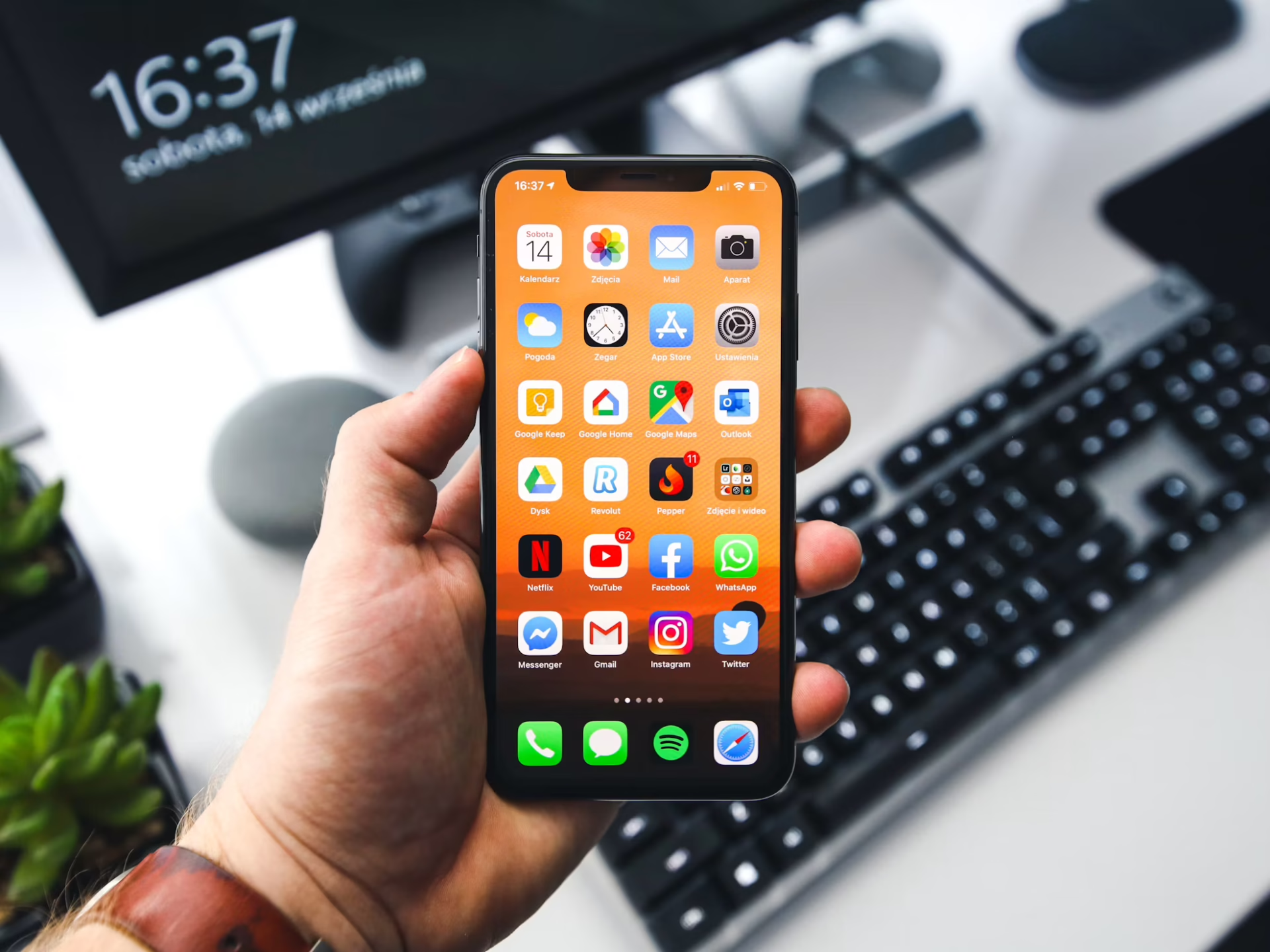
Phone casting to TV is now a common way to stream movies or play mobile games without using cables or dongles. As more people rely on casting for entertainment and productivity, connection problems and playback issues have become a recurring frustration. Glitches or dropped streams can ruin the experience, especially during live events or presentations.
Fortunately, most of these issues are not caused by faulty hardware but by overlooked settings or outdated software. With just a few small adjustments — like syncing devices properly and optimizing network performance — casting can become a smooth, reliable part of daily tech use.
Phones and TVs often fail to detect each other when they’re connected to different segments of the same Wi-Fi network. For example, this happens when one device is linked to the main SSID and the other to a guest network or mobile hot spot. Even when both appear connected to Wi-Fi, this separation can block communication between devices, especially when routers are configured with security features like “access point isolation.”
This setting prevents devices from interacting across the same network, which is a common source of casting problems. To ensure a successful connection, the phone and TV must be connected to the same SSID. If issues persist, users should check their router settings and turn off access point isolation to allow local network traffic between devices and streaming tools.
Phone casting to TV may crash or disconnect randomly when devices run outdated software or incompatible app versions. These issues often stem from mismatches between the phone’s operating system, the TV’s firmware or the casting app itself.
Over time, system bugs or outdated protocols can interfere with stability and break device communication. To avoid these interruptions, users should regularly check for updates and turn on auto-updated features when available. Keeping everything current ensures smoother casting and continued compatibility across devices.
Phone casting can still fail even when both devices appear to be on the same Wi-Fi network. This often happens because the router’s security settings block peer-to-peer discovery, preventing devices from recognizing each other. Features like AP isolation or disabled universal plug and play (UPnP) are common culprits, especially on modern routers with strict default configurations.
To resolve this, users should enable UPnP to allow automatic device communication and disable AP isolation if it’s turned on. It’s also worth checking for router firmware updates or consulting brand-specific guides for casting-friendly settings that won’t compromise network security.
Phone casting to TV often lags or disconnects due to weak or congested Wi-Fi signals. This can result from slow internet speeds, overused 2.4 GHz bands or signal interference from nearby electronics like microwaves and Bluetooth devices.
When these are placed too close to routers or streaming gear, they disrupt wireless signals and reduce streaming quality. Switching to a 5 GHz network improves stability, while rebooting the router or upgrading to a mesh system enhances overall coverage. A clean, interference-free setup helps ensure smooth, uninterrupted casting sessions.
When phone casting, many users mistakenly choose screen mirroring instead of true casting, resulting in poor visuals and annoying on-screen notifications. Mirroring simply replicates the phone’s display, which isn’t optimized for video playback or multitasking.
In contrast, casting streams the media directly from the internet to the TV, delivering better picture quality and smoother performance. This also frees up the phone for other tasks without affecting playback. For the best experience, users should use the built-in “cast” button within supported apps, which is designed perfectly to enhance performance and minimize distractions.
Phone casting to TV may stop abruptly or show downgraded resolution when battery or data optimization features interfere with background processes. Many smartphones automatically limit activity from apps that consume power or data in the background, especially during casting.
This can lead to interrupted streams or a sudden drop in video quality. To prevent these disruptions, users should exclude casting apps from battery saver settings and avoid enabling data saver during streaming. Keeping the phone charged and connected to a stable Wi-Fi network also helps maintain consistent performance throughout the session.
Phone casting sometimes results in a black screen or shows the wrong input source, even when both devices are connected properly. This often happens because the TV fails to auto-switch to the correct input, or switches away unexpectedly due to default settings or a previous manual override.
Some smart TVs also prioritize HDMI sources or other devices, which can interfere with casting. To avoid confusion, users should manually select the correct casting input or app on the TV before starting. If available, disabling the “auto switch input” feature can prevent the TV from changing sources mid-session and ensure consistent display during casting.
Phone casting to TV may not work when the cast button is missing or the video refuses to play, often due to app limitations or digital rights management (DRM) restrictions. These restrictions are commonly enforced on copyrighted content and typically require user authentication before playback is allowed.
Attempting to bypass this by screen-mirroring can trigger black screens or playback errors, as DRM blocks unauthorized streaming paths. To avoid these issues, it’s best to use native apps that support casting, such as YouTube, Netflix or other officially integrated platforms. These apps handle DRM correctly and are optimized to stream media directly to the TV, ensuring a smooth and secure viewing experience.
Even tech-savvy users run into casting issues that aren’t always easy to troubleshoot. These quick answers help clear up common problems with phone casting to TV, from missing icons to poor video quality.
If the cast icon is missing, the app you’re using might not support casting, or your devices aren’t on the same Wi-Fi network. Check that your phone and TV are connected to the same SSID, and try restarting the app or device.
Yes. Devices like Chromecast, Amazon Fire Stick, Roku and Apple TV allow casting to older TVs through HDMI ports. Just make sure your phone and the casting device are on the same network.
This usually happens if you’re mirroring instead of casting. True casting doesn’t rely on your phone staying active. If you are using screen mirroring, try disabling battery optimization or keeping the phone awake.
Phone casting to TV offers a powerful and convenient way to stream content, but small setup mistakes can easily disrupt performance. A quick check of network settings, app versions and device connections often solves problems without replacing hardware. Taking a few minutes to review the setup helps ensure smoother casting and a more reliable viewing experience.