Malware is an unfortunate reality of living in today’s hyper-connected world. While you likely know how to handle it on your computer, though, your phone is a different matter. Mobile malware isn’t quite as common, especially on Apple devices, so not many people know how to check for viruses on iPhone.
Can You Get a Virus on an iPhone?
You’re unlikely to get a virus on your iPhone, but it’s not impossible. Apple follows a closed development process and thoroughly vets all apps on its App Store, so it’s extremely difficult for malware to slip through the cracks. Still, iOS can suffer from one of the biggest cybersecurity risks on all devices — user error.
Only 21% of iPhone users use security software on their phones. That may not be a huge issue when iPhones are so secure to begin with, but it does reflect some risky behavior. More worryingly, 53% of iOS users have fallen for a scam, and 47% have purchased something from an unknown source.
Downloading an app from a third-party source without as much security oversight could open your iPhone to viruses. Tapping a malicious link could do something similar. Jailbreaking your phone could also leave it vulnerable to threats over insecure Wi-Fi networks and other threats.
How to Check for Viruses on iPhone
The process for how to check for viruses on iPhone is similar to checking if it’s tapped, as a lot of the warning signs are the same. Here’s what to do if you’re worried you might have a virus on your phone.
1. Look for Unusual Apps
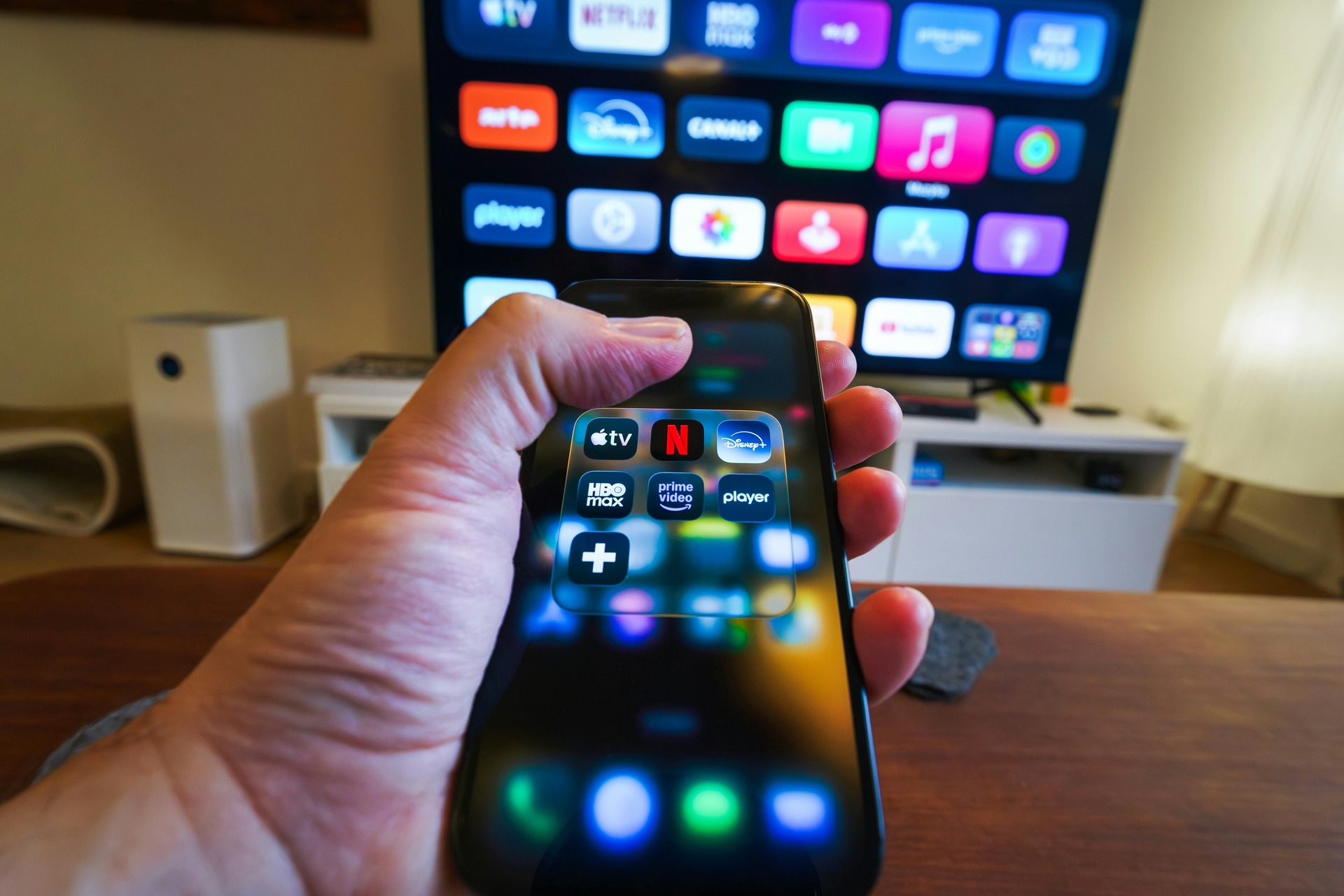
The first step in checking for viruses on your iPhone is to look for any apps you don’t remember installing. Check both your home screen and your App Library, which Apple introduced in iOS 14 to make it easier to organize and search for installed apps.
Immediately delete anything you don’t recognize. It may not necessarily be malware, but it isn’t worth the risk. You can always redownload something from the official App Store if necessary.
2. Review Your App Permissions
While you’re inspecting your apps, take a look at their permissions. You could go through every app and see what it has access to, but that will take a while. The faster way is to go into your settings and look for the Privacy and Security menu, where you can review permissions over the most sensitive data.
A few important categories to check include your Location Services, Microphone and Camera. Tap each of these to see which apps have access to these functions. An app that accesses data that doesn’t make sense or that it doesn’t need could be a threat.
3. Examine Your Data Usage
Next, look at how much data you’ve been using. In your iPhone’s settings, go to Cellular, where you can see how much data you’ve used for the month under the “Usage” tab. You can also scroll down to review each app’s piece of that pie.
On average, smartphone users consume roughly 22 gigabytes per month, but yours may be higher or lower, depending on how much you use your phone. There may be a virus if the number seems unusually high with no other explanation. One app consuming more data than it should is another red flag.
4. Watch Your iPhone’s Performance
Another way to check for viruses on an iPhone is to watch how it performs. Malware running in the background will consume more computing power than your phone might normally use. Consequently, sudden slowness, stuttering, overheating or your battery draining faster than it should could signify a larger problem.
Keep in mind that not every instance of poor performance means you have a virus. It could just be a matter of too many junk files or low storage. Try restarting your iPhone using any method and see if that helps before assuming you’re dealing with malware.
5. Monitor for Strange Activity
Similarly, odd behavior from your iPhone or its apps can be a red flag. Apps suddenly crashing, especially if this happens regularly and restarting does not fix it, could be a sign of a virus. Strange noises during calls and settings seemingly changing on their own are other things to watch for.
Pop-ups are also worth noting, although pop-up ads are fairly common in mobile games. However, if you’re seeing a spike in them outside of apps where you’d expect to encounter them, there could be a virus on your iPhone.
6. Make Sure Your Phone Isn’t Jailbroken
After seeing some of these other signs, you should make sure your phone isn’t jailbroken. Jailbreaking is a way to force past built-in software restrictions and is one of the only ways you can get a virus on your iPhone. Consequently, double-checking for this tampering is a good way to determine whether viruses are a likely threat.
You can check for jailbreaking in a few ways. Start by looking for default apps like Safari and Mail, which jailbreaking may remove. Similarly, you can check for otherwise unauthorized apps like unofficial app stores, such as Cydia or Sileo. The inability to install iOS updates is another warning sign.
7. Run a Third-Party Antivirus Scan
All of these other methods could suggest there’s a virus on your iPhone, but they’re not foolproof. Consequently, if you’ve noticed enough of these signs, you should perform an actual antivirus scan.
Your iPhone does not have a built-in scanner, but you can use a third-party app like Norton or Avast. Only use services from security companies you’ve heard of before and know you can trust. Inspect their App Store pages to ensure they’re verified and legitimate before downloading them.
What to Do If You Find a Virus on Your iPhone
After checking for viruses on your iPhone, you should immediately delete any suspicious apps. Updating your iOS and restarting your device may also help. You can remove viruses from an iPhone in a few other ways, too, and it’ll be safest to try multiple fixes.
Keep Your iPhone Virus-Free
The chances of you getting a virus on your iPhone are slim, but it’s still possible. Practice safe behaviors like using strong passwords and avoiding third-party app stores to stay safe. Turn back to this guide if you think you may have reason to worry, and remember to improve your security methods after avoiding any sort of close call.
Recent Stories
Follow Us On
Get the latest tech stories and news in seconds!
Sign up for our newsletter below to receive updates about technology trends