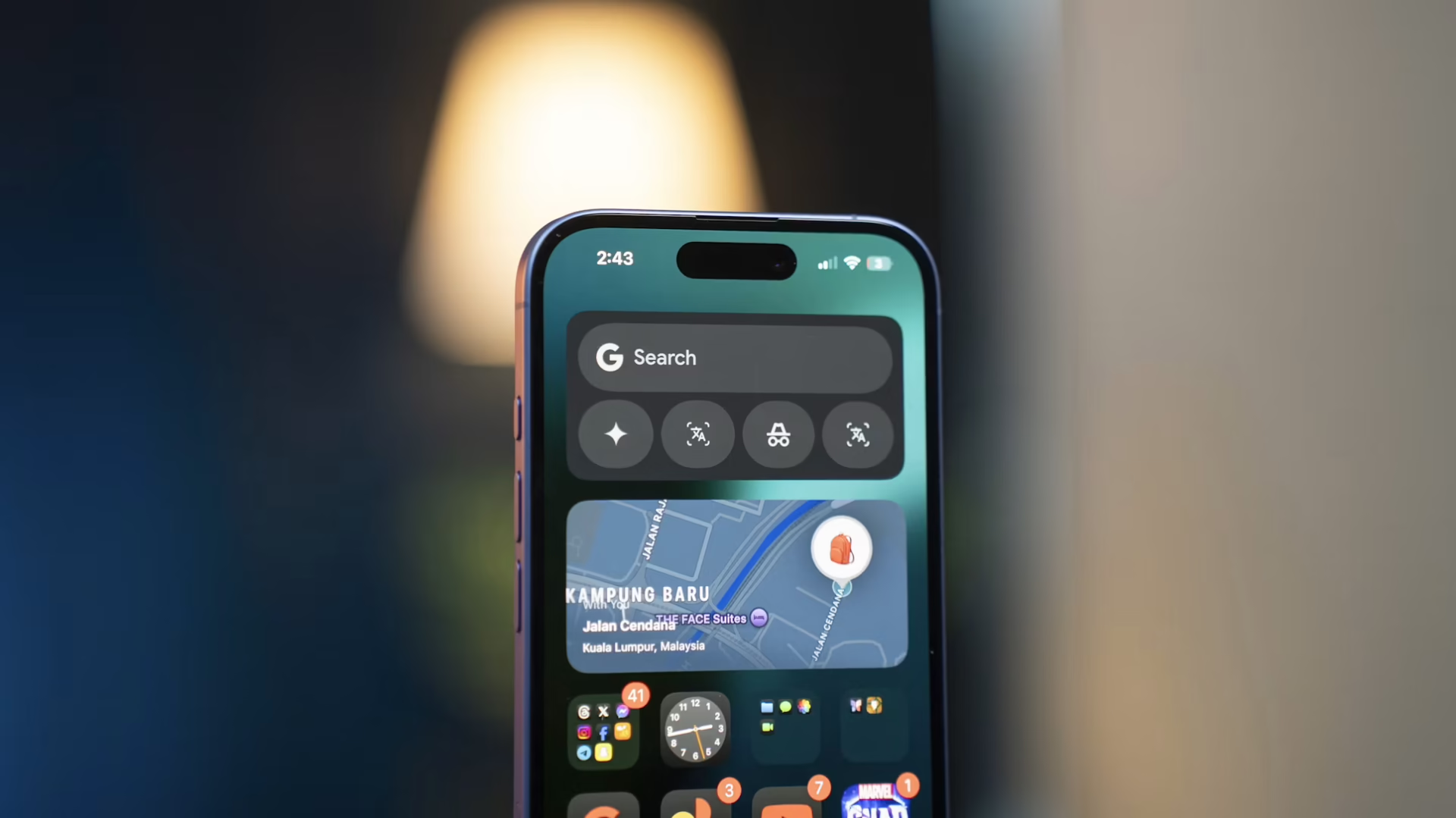
Apps are one of the best things about smartphones and smart devices in general. Sometimes, though, they can fill up your device and you just need to get rid of a few. No matter what operating system you have, removing apps is easy. Here’s how to delete apps on iPhone and Android.
First up, Android has a couple of different methods that you can use to delete apps. It allows you to remove apps that you have downloaded or hide system apps that come with your phone. Remember, even if you delete an app that you purchased, you can always re-download it without having to pay again.
Since the Android operating system covers so many devices, each instance may vary. For example, deleting your apps could be as easy as pressing and holding on an app, then dragging it to the “Uninstall” option or simply pressing remove or delete when the screen pops up.
However, here’s a standard method for deleting apps:
While you can’t delete apps that are part of your phone’s system, you can disable a few to some degree. To find which ones you can hide, or disable, follow these steps:
Keep in mind that most Androids have different setups. Your version of these steps may look slightly different from other Android users’ but the layout will be similar.
Like Android, Apple allows you to remove apps in multiple different ways. Also, you can always re-download apps later without having to pay again.
These methods work with most mobile Apple devices — iPhone, iPad, iPod. As long as you have an up-to-date version of iOS, you’ll be set to follow these steps.
The first method is the simplest:
If you want to delete several apps, you can:
Then, you’re all set. If you’re deleting an app where you have subscriptions, an option may pop up asking if you’d like to Cancel Subscriptions. If not, the app shouldn’t delete the subscriptions.
Additionally, this method applies to system apps. The difference is that you may need some of the system apps. For instance, if you delete Music, you may not be able to play songs through other Apple apps.
You can also hide apps from your Siri search. To do so:
Last, if you’re looking for ways to improve your iPhone’s storage through deleting apps, you can follow these steps:
In this section, you can see how much storage each app takes up. From there, you can choose which apps to optimize. Offloading means that you save an app’s data and documents on your phone but remove the app itself. You can do it with individual apps or have your iPhone do it for you.
Whether it’s to organize your device or optimize your storage, deleting apps can go a long way. With these methods on how to delete apps on iPhone and Android, you’ll be able to have a cleaned-up interface that refreshes how you use your device.