Whether you’re transferring photos from a camera, connecting an external drive or charging a phone, a Universal Serial Bus (USB) connection is something most people rely on multiple times a day. So, when your computer displays the frustrating message “USB Device Not Recognized,” it can quickly disrupt your workflow or plans, especially if you don’t know where to start troubleshooting.
Fortunately, resolving this common issue can often be quick and straightforward once you walk through the right steps. Here are eight potential fixes to help you get your USB device working again.
1. Try a Different USB port

Sometimes, the issue lies with the specific port rather than the device itself. Ports can accumulate dust, wear out over time or simply have a momentary glitch. Unplug your USB device and plug it into another port on your computer.
If you’re using a USB hub, try connecting the device directly to the computer to bypass the hub. This simple switch often resolves temporary connectivity issues and helps determine whether the problem is port-related or device-specific.
2. Restart Your Computer
It may seem basic, but restarting your system can reset hardware drivers and reinitialize USB ports, often resolving temporary detection failures.
Save all work and perform a proper system restart, rather than using sleep or hibernate. Once the system reboots, plug the USB device back in and see if it is recognized. This refresh can clear temporary software or driver hiccups that were preventing proper USB detection.
3. Update Your USB Drivers
Drivers are essential software components that allow your operating system to communicate with hardware — outdated or corrupted USB drivers can prevent devices from being recognized.
On a Windows computer, open Device Manager > Universal Serial Bus controllers > right-click each USB Root Hub and choose Update driver. You can also visit your computer manufacturer’s support page for driver updates.
4. Disable USB Selective Suspend Setting
The USB selective suspend feature, used by Windows to conserve power, can sometimes turn off ports and interfere with device detection, especially on laptops.
Navigate to Control Panel > Power Options > Change plan settings > Change advanced power settings. Expand USB settings, then USB selective suspend setting and set it to Disabled. This change helps ensure your ports remain active when devices are connected and removes unnecessary power-saving interruptions.
5. Check for Windows Updates
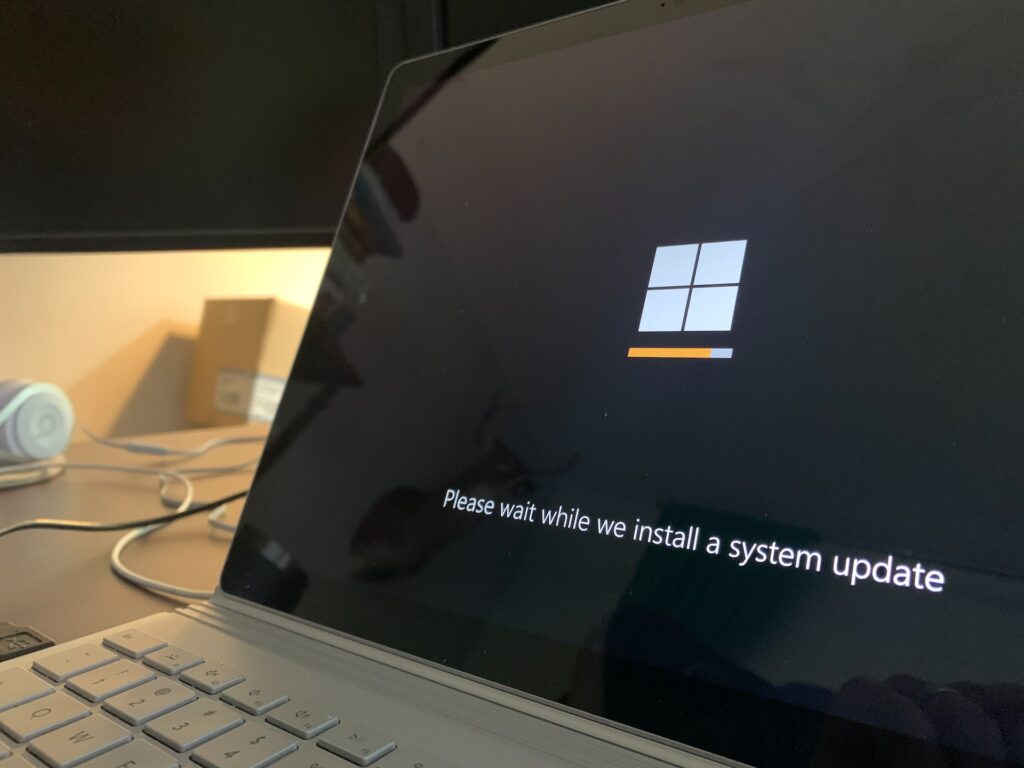
System updates often include bug fixes and hardware compatibility improvements, so ensuring your operating system is fully updated can resolve hidden USB issues. Go to Settings > Windows Update > Check for updates. Install any pending updates, restart your computer and reconnect the USB device.
The U.S. Cybersecurity and Infrastructure Security Agency (CISA) recommends enabling automatic updates to ensure you’re always running your operating system’s most secure and compatible version.
6. Uninstall and Reinstall the USB Device
If your system previously recognized the USB device and stopped doing so, reinstalling it may help resolve conflicts that developed over time.
Open Device Manager, find your USB device under Universal Serial Bus controllers, right-click and select Uninstall device. Disconnect the USB, then restart your computer and plug it back in. This prompts Windows to automatically reinstall the correct driver and reestablish the connection from scratch.
7. Use Built-In Windows USB Troubleshooter
Microsoft includes a hardware troubleshooter that can automatically detect and fix common USB-related issues, making it an easy next step when manual fixes don’t help.
Open Settings > System > Troubleshoot > Other troubleshooters > Run the Hardware and Devices troubleshooter. Follow the on-screen instructions and let the tool scan for problems. This built-in tool can resolve multiple underlying issues without needing deep system knowledge or manual adjustments.
8. Try the USB Device on Another Computer
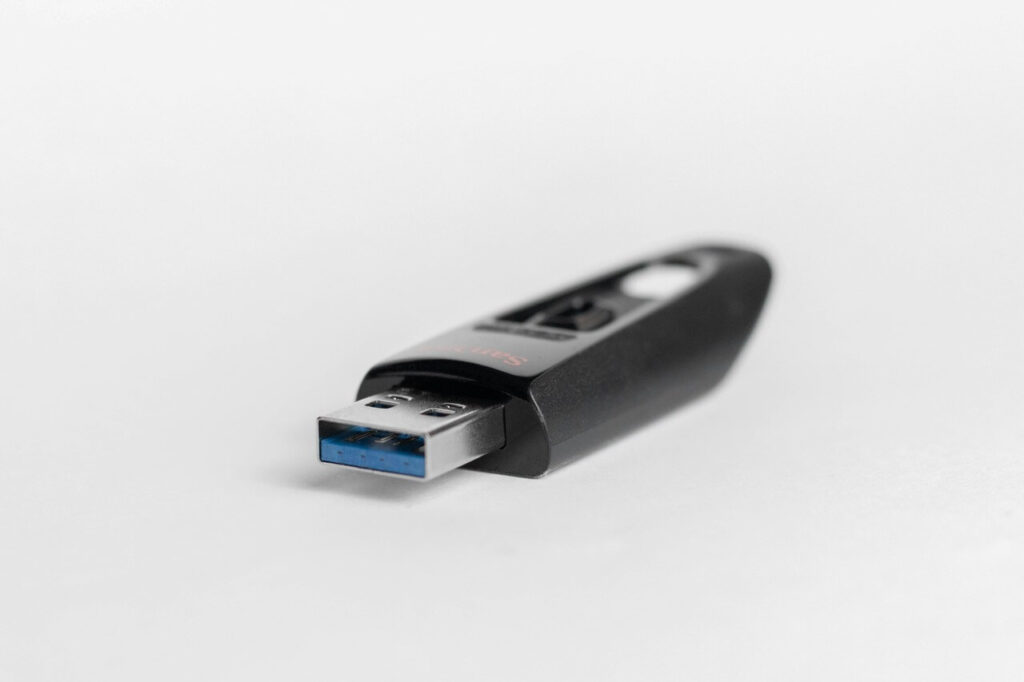
If the USB device still isn’t detected, testing it on another machine can help determine whether the issue lies with the computer or the USB device itself. Plug the same USB into another laptop or desktop.
If it works elsewhere, your original system may need deeper troubleshooting or a professional inspection. This step narrows down the root cause, helping you decide whether to investigate system settings or consider that the device may be damaged.
What if the USB Device Works, but Behaves Oddly?
Sometimes the USB device is technically recognized by your computer, but the way it functions suggests something is off. You might notice intermittent connections, slow file transfers or random disconnections. These signs point to different underlying issues, but many are still easy to address. Below are a few practical things to check.
Try a Different USB Cable or Adapter
A damaged or low-quality cable can cause unstable connections, especially for devices like external hard drives, phones or cameras. Swapping in a higher-quality or manufacturer-supplied cable often improves both power delivery and data transfer performance.
Inspect the USB Port and Connector
Dirt, lint or physical damage can affect how securely the device connects. Use a flashlight to inspect the USB port and the device’s connector. A can of compressed air, a wooden or plastic toothpick lightly moistened with 70% isopropyl alcohol, or a soft brush can help safely remove debris. Never use metal tools, as they can scratch components or create a short.
Switch Between USB 2.0 and USB 3.0 Ports
Some older devices work more reliably with USB 2.0 ports, even if USB 3.0 is backward compatible. If your device acts up in a USB 3.0 port — usually labeled blue — try a USB 2.0 port instead.
Check Disk Management
If you’re dealing with an external or USB flash drive, go to Disk Management by right-clicking the Start menu > Disk Management.
Look for unallocated space or missing drive letters. Right-click the drive and assign a letter if one is missing. If the drive appears offline, right-click and choose Online. This can help the drive appear correctly in File Explorer and function as expected.
Disable USB Power Saving Settings
In addition to disabling USB selective suspend, you can stop Windows from turning off USB ports to save power. Open Device Manager, right-click your USB Root Hub under Universal Serial Bus controllers and choose Properties. Under the Power Management tab, uncheck “Allow the computer to turn off this device to save power.”
Get Your USB Working Again
Fixing a “USB Device Not Recognized” issue often just takes a few quick steps. From switching ports to updating drivers, small tweaks can restore your device in minutes.
However, if none of the steps help and the problem continues across multiple computers and cables, the USB device may be failing. In that case, back up any important data and consider a replacement or contacting support.
Recent Stories
Follow Us On
Get the latest tech stories and news in seconds!
Sign up for our newsletter below to receive updates about technology trends