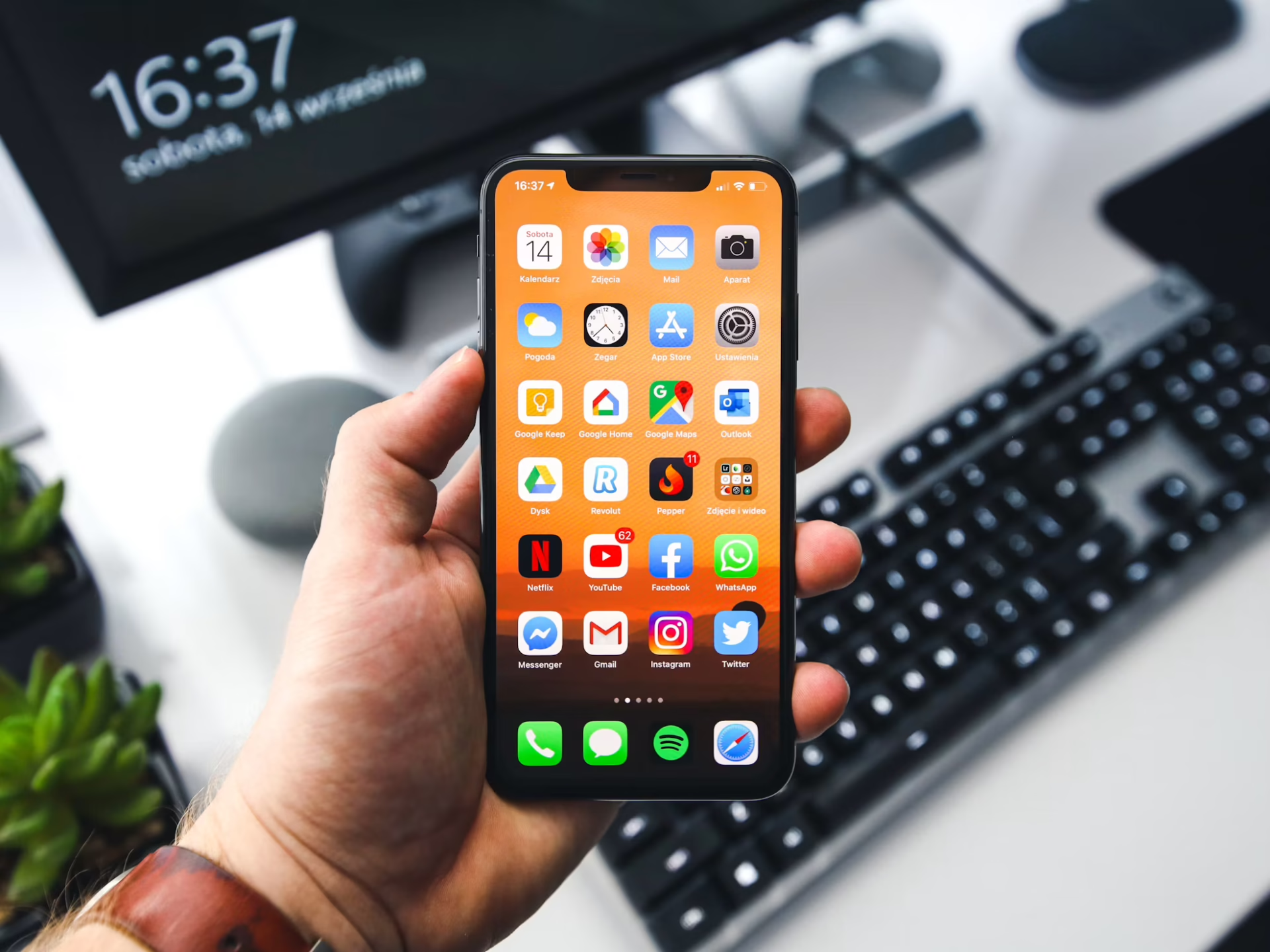
If you’ve connected your Facebook and Instagram accounts at some point, you’re far from alone. The integration between these platforms makes sharing posts, running ads and messaging across apps more convenient. Still, there are plenty of reasons you might want to separate them. Maybe you prefer more privacy, want to manage accounts independently or simply feel that the connection no longer serves your needs.
The good news? Unlinking Facebook and Instagram is straightforward once you know where to look.
Before diving into the steps, it helps to understand why people choose to disconnect their accounts.
One major reason is privacy and control. When accounts are linked, certain data and activity may be shared across platforms. Limiting how platforms share data can give you better control over your digital footprint.
Another common reason is content separation. You might want your Instagram to stay personal while your Facebook remains more professional, or vice versa. Unlinking helps you tailor each platform to a specific audience.
There’s also the issue of account security. Around 80% of successful data breaches involve compromised or weak passwords, even though many users are already familiar with basic password practices. Reducing unnecessary links between accounts helps limit shared access points and supports stronger, more intentional security habits.
In addition, managing your social media environment has become increasingly important. Research shows that over 26% of American teens experience cyberbullying, with Instagram ranking among the most commonly reported platforms for these interactions. This highlights how quickly online spaces can feel overwhelming, making it even more valuable to control how your accounts connect and what content you engage with.
Unlinking your accounts changes how the two platforms interact. Here’s what you can expect:
Your accounts remain fully functional on their own. You simply remove the connection between them.
There are a couple of ways to unlink your accounts, depending on where they are connected. The most common method involves the Meta Accounts Center.
Meta Platforms, Inc. manages both apps through a centralized system called Accounts Center.
On Instagram:
On Facebook:
Once completed, your accounts are no longer linked.
If your connection comes from Facebook’s side, you can also remove Instagram through Facebook settings:
This achieves the same result but starts from Facebook instead of Instagram.
Sometimes you want to keep the accounts connected, but stop automatic posting. Here’s how:
This option gives you flexibility while keeping integration features available.
After unlinking, it’s a good idea to review your login and security settings.
Use different passwords for each account. Security experts widely recommend creating long, unique passwords for every platform to reduce the risk of unauthorized access. This approach helps protect your accounts individually, especially after unlinking them.
Two-factor authentication (2FA) adds an extra layer of protection by requiring a second verification step. You can enable it in both apps under:
Check which third-party apps have access to your accounts and remove any you no longer use. This helps reduce potential security risks and keeps your account permissions clean and up to date.
Even though the process is simple, you might run into a few hiccups.
Sometimes changes take a few minutes to reflect. Try:
If you don’t see Accounts Center:
Meta has gradually rolled out this feature, so placement may vary slightly.
If you run ads or manage a business page, unlinking may not fully disconnect tools. Visit:
Unlinking works well for many users, though there are cases where keeping accounts connected makes sense. You might want to stay linked if you:
For creators and businesses, integration can save time and streamline workflows.
Once your accounts are unlinked, a few habits can make things easier.
Use clear naming and profile images to identify each account quickly. You can also align your bios and usernames so they reflect the purpose of each profile, whether personal or professional. Keeping a simple naming system helps you switch between accounts without confusion. It also makes it easier for your audience to recognize and trust your profiles.
If you used auto-sharing before, consider scheduling posts separately using built-in tools or trusted platforms. Planning your content helps maintain consistency across both platforms without relying on automation. You can also tailor captions, hashtags and visuals to suit each audience better. This approach often leads to stronger engagement since each post feels more intentional.
Each app has its own notification settings. Customize them to avoid overload. You can prioritize important alerts, such as messages and comments, while muting less critical updates. This helps you stay focused without constant interruptions throughout the day. Taking a few minutes to fine-tune notifications can greatly improve your overall experience.
Unlinking Facebook and Instagram gives you more control over how you use each platform. Whether your goal is better privacy, clearer content boundaries or improved security, the process only takes a few minutes.
You can always reconnect your accounts later if your needs change. For now, taking control of your digital connections helps you create a setup that works better for you.
If you’re exploring ways to improve your online security or simplify your social media experience, this small step can make a meaningful difference.