
If you want to know how to transfer photos from Android to a computer, there are several ways to handle transfers efficiently without data loss or unnecessary complexity. Whether you are moving photos, videos or documents, the method you choose can significantly affect speed, convenience, and reliability.
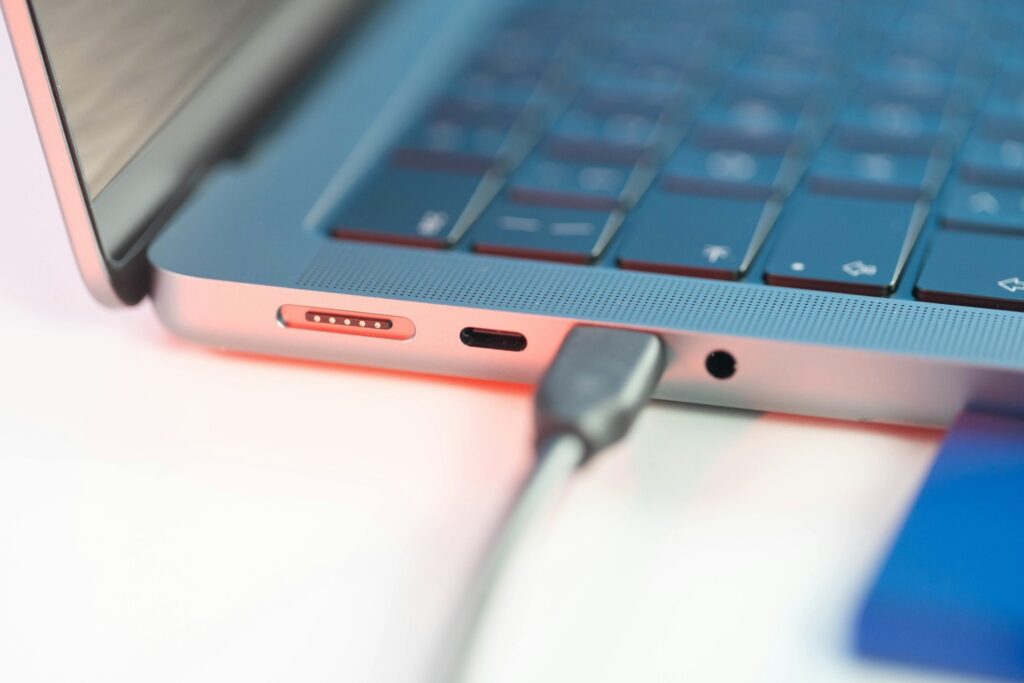
With over 3.8 billion active Android devices worldwide, file transfer is a daily necessity for a massive user base. While there are many ways to move data between devices, directly transferring files using a USB cable remains a go-to method for many users. This method is particularly useful if you’re learning how to transfer photos from Android to a computer, as it allows you to copy entire albums without relying on cloud storage or internet access.
Its appeal comes from its simplicity and reliability. You can choose from common cable types such as USB-A to USB-C, USB-C to USB-C for newer devices or Micro-USB for older models. In most cases, newer USB-C connections offer faster transfer speeds and greater stability, especially when transferring large files. It also delivers fast performance without relying on an internet connection.
When you are working across multiple devices or need remote access to your files, cloud storage services provide a flexible way to move files conveniently. By uploading files from your computer to a service such as Google Drive or Dropbox, you can access and download them on your Android device using the corresponding app. It also offers automatic backup, preserving your data even if a device is lost or damaged.
Security should be a key consideration when handling sensitive files. Choose a provider that offers safeguards such as encryption and two-factor authentication (2FA) to prevent unauthorized access. Industry compliance standards, regular security audits and strong privacy policies are also indicators of a trustworthy cloud service.
If you want to use wifi to transfer files, numerous apps are available specifically for wireless file sharing between Android devices and computers. Once you have connected your devices to the same network, you can select files on your computer and send them directly to your phone via the app. This method strikes a balance between speed and convenience, especially for users who frequently move files.
When using third-party transfer tools, it is important to verify that the software comes from a trusted source. Some may carry malware, such as Trojans, which can secretly access a device to steal sensitive information, including passwords, messages and banking details, or even enable remote control by cybercriminals. Sticking to reputable software providers such as Quick Share is the safest approach.
Browser-based services run directly in a web browser, making them a convenient option for occasional transfers or when you cannot install applications. Some of them don’t require an account as well.
When using browser-based file transfer services, choose reputable providers such as WeTransfer and SendSpace and verify that the website uses a secure HTTPS connection. Avoid unfamiliar websites that request unnecessary permissions or personal information. If the service temporarily stores files on its servers, review its privacy policy and file retention practices before transferring sensitive data.
For smaller files, email or messaging apps can be a quick solution. Simply attach the file to an email or message from your computer and open it on your Android device to download it. While this method is easy and requires no setup, it is not ideal for large files due to attachment size limits and slower handling of multiple items.
Bluetooth remains a built-in option on most computers and Android devices. After pairing the two devices, you can send files wirelessly without needing an internet connection. However, Bluetooth is significantly slower than other methods. Use it only for small files, such as documents or a few images.

When transferring files between devices, it is important to ensure both security and data integrity. Even small interruptions or the use of unreliable methods can result in incomplete or corrupted files that may not open properly later.
Different transfer methods also carry different risks. Wireless and cloud-based options are convenient but depend heavily on network stability, while wired transfers are generally more stable but still require proper handling to avoid disconnections.
Keep these tips in mind:
To ensure smooth transfers, check whether the transfer platform or tool is compatible with both your computer’s operating system and your Android device. For example, certain manufacturer tools only support Android-to-Windows transfers. When using a USB cable, compatibility also depends on whether your computer supports the device through file transfer (MTP) mode, not just physical connection.
From direct USB connections to cloud storage and wireless apps, Android gives you plenty of options to move files between devices. Whether you’re moving work documents or videos or figuring out how to transfer photos from Android to a computer, choosing the right transfer method depends on your priorities, including speed, convenience and security.