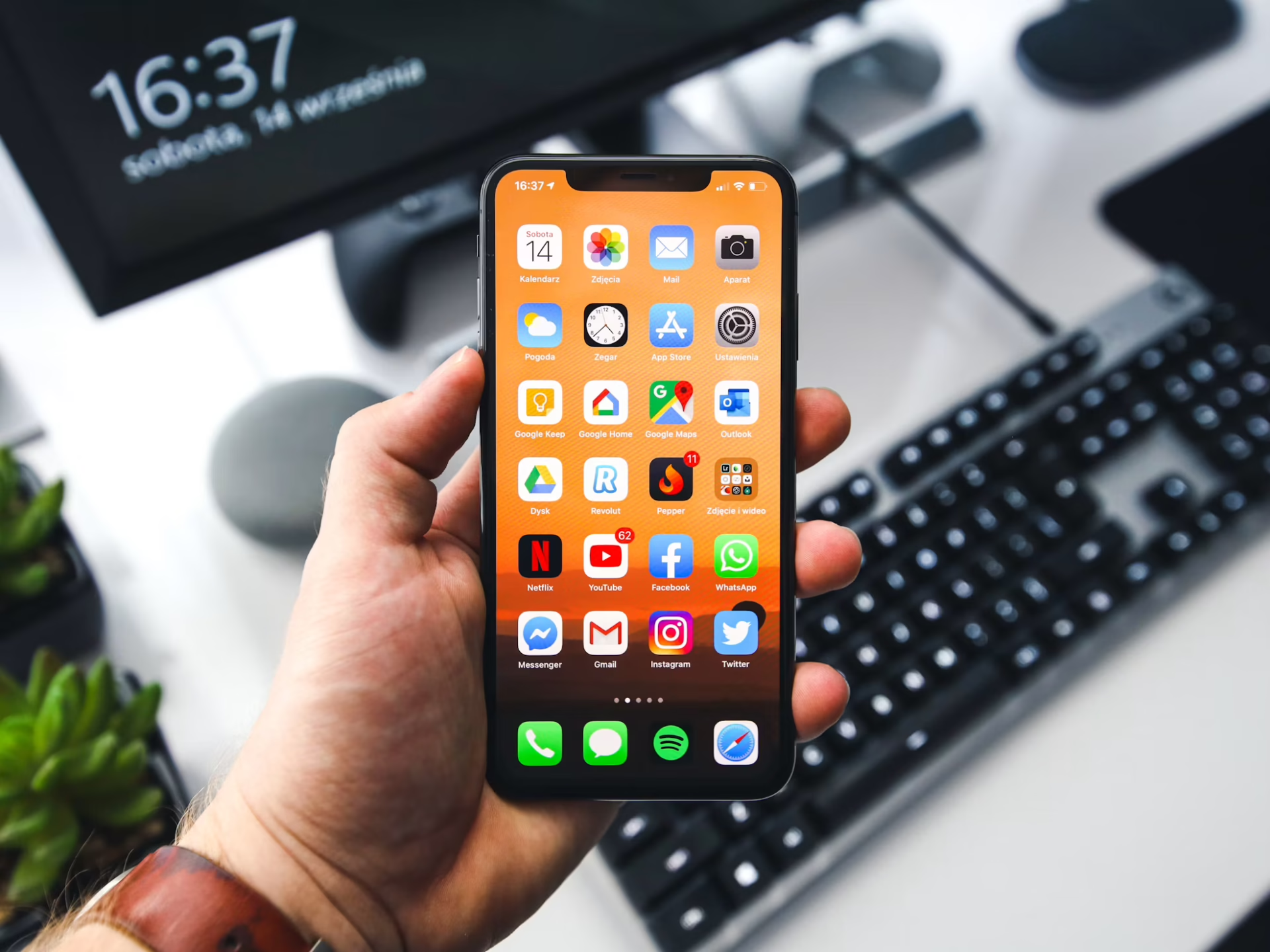
Resetting the network settings on an iPhone erases all stored network- and internet-related data on the device, like Bluetooth settings, Wi-Fi names and passwords, cellular settings, network login information and anything saved on paired headphones. It can sometimes solve network connectivity issues. Here’s how to reset the network settings on your iPhone.
First, open your iPhone and go to Settings, then tap General.
If you’re using iOS 15 or later, scroll down and tap Transfer or Reset iPhone. Next, tap Reset. Select Reset Network Settings to finish resetting your iPhone.
If your phone runs iOS 14 or earlier, tap Reset instead of Transfer or Reset iPhone. Next, select Reset Network Settings. That should clear your network settings.
If your iPhone is struggling to find a cellular connection or connect to a Wi-Fi network, resetting your device’s network settings can sometimes help. This action will delete all network-related info from your phone, but it still preserves crucial data like your contacts, mobile carrier functionality and payment information.
There are several reasons your iPhone might struggle to establish a Wi-Fi connection, including:
It depends. There are several other steps you can take to troubleshoot connectivity issues, such as restarting your phone, checking your internet on another device or rebooting your router and modem.
You can also try toggling Airplane Mode on and off to see if that resolves any connectivity issues. Additionally, you should make sure your iPhone is running the latest operating system and that you’ve updated every apps.
Resetting an iPhone’s network settings deletes:
As a last resort to fix connectivity issues, you can do a factory reset on your iPhone. Doing this will revert your phone back to its original settings and you’ll lose anything not saved in the cloud. Here’s how to do it:
You can choose to either erase your phone’s eSIM — if you have one — or keep it. Erasing your eSIM means you’ll need to contact your carrier to activate a phone plan. Doing so allows you to send calls and texts again.
Yes, a factory reset does just what the name implies — it resets your phone to how it was in the factory. In other words, you’ll wipe it clean. But if you back your phone up to iCloud before resetting it, you can recover them. You can also recover any photos, videos and notes you had on your phone.
If you’re planning to sell, donate or recycle your phone, a factory reset is the last step in the process. But what if you want to use your phone again? You can restore your previous data as long as you backed it up online. Here’s how:
Do you have another iPhone, iPad or iPod Touch equipped with iPadOS 13, iOS 11 or later? If so, here’s another way to recover your phone’s data:
You’ll then have two options for transferring your data. You can transfer it from your old device, waiting a few minutes for both devices to finish the process. Leave both phones on their chargers until the transfer is complete. The process can take awhile, especially if you’re transferring a lot of data.
Or, you can download the data from iCloud. This option allows you to start using your phone again right away, since the apps and other data will download in the background.
Sometimes, your phone can’t connect to the internet due to a hardware issue, such as with your home internet router or modem. Here’s how to reboot them:
Hopefully, this helps your phone reestablish an online connection.
Rebooting your modem and router never hurts, so you can do it as often as you like. As a matter of maintenance, it’s a good idea to reboot them at least once every couple of months to prevent connectivity issues.
Now you know how to reset the network settings on your phone, perform a factory reset and reboot your router and modem. Hopefully, this will resolve any connectivity issues your device is experiencing.