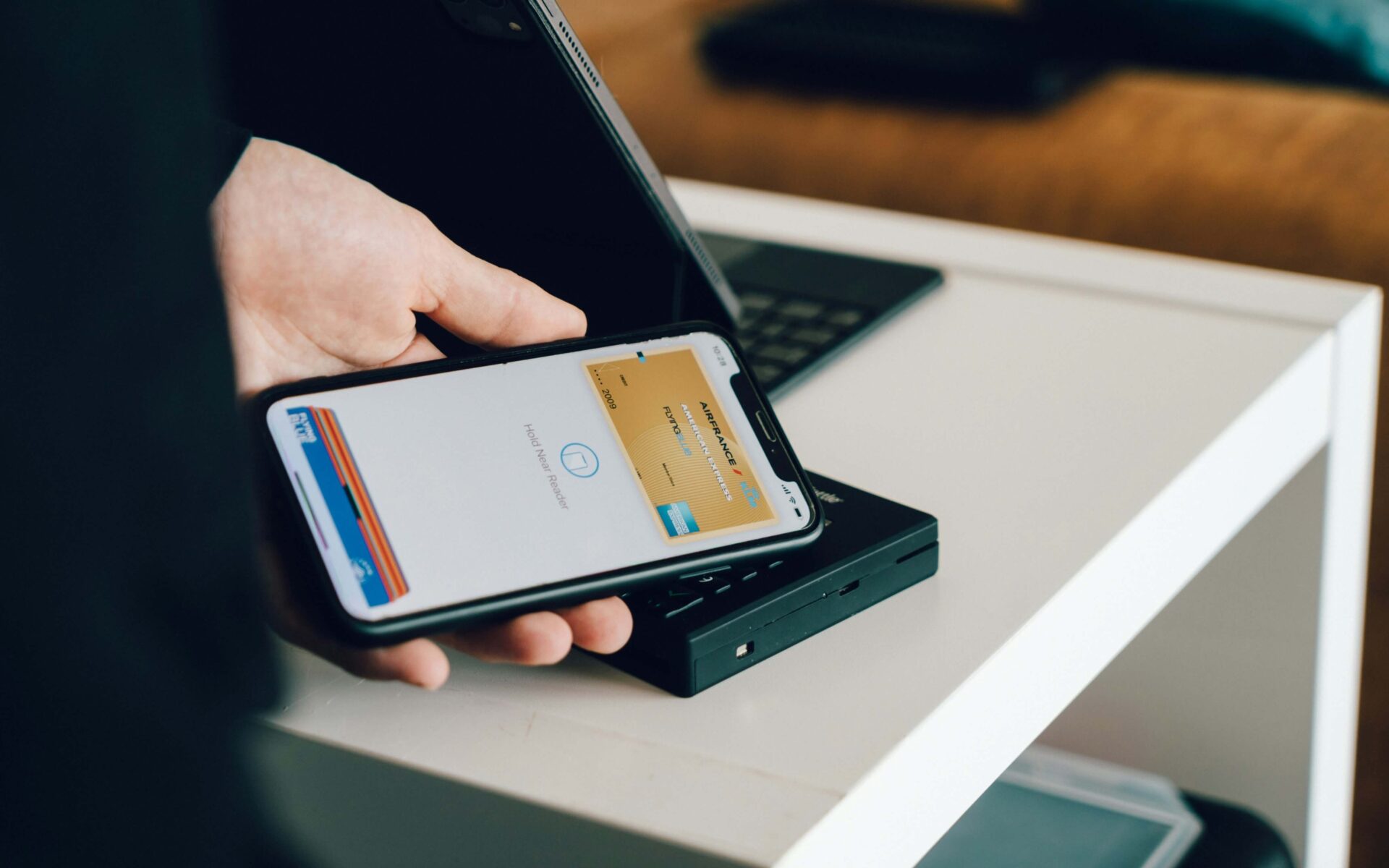
One of the most convenient features of most smartphones is a digital wallet. You can put everything in there, from car insurance cards to concert tickets. However, you can also have a medley of debit and credit cards lingering in the folio. Sometimes they expire, or sometimes you want to rehome your phone. To prevent safety issues or outdated information, learn how to remove payment cards from Apple Wallet on your iPhone.
Did a card expire, get compromised, or do you just not want the card easily accessible anymore? There are many reasons you could want to get rid of a card or anything else in your wallet. Here’s how to delete them. Currently, there is guidance on how to do this for iOS 18 and iOS 17.
You can delete payment cards from two places — the Wallet app or directly from Apple Pay. The latter is the better option if you don’t have immediate access to your phone, but you can log in to your Apple account elsewhere.
You can also sign into iCloud through Settings and log out. Doing so will immediately remove any payment methods from the phone until you input your credentials again and update the card information.
Follow these steps to remove payment cards from Apple Wallet directly:
Deleting a card prevents you from using the payment method anywhere, but you can feel free to add it again at any point if you desire.
Unfortunately, sometimes phones get lost or stolen, and you could be afraid of someone taking it and using stored cards. The Apple team recommends attempting to use the Find My iPhone feature before anything else, as it can show the location of where your phone was previously.
If you have more questions about how to manipulate card settings in Wallet, we have the answers.
If you want to be sure you don’t accidentally use the wrong card next time you double-tap some buttons, here is how you change your default card settings:
You can also do this for your Apple Watch if you have one, but the method is different. You go to the Apple Watch app instead of Wallet. There is a tab called “My Watch,” which leads to a setting called “Wallet & Apple Pay.” Then, navigate to “Transaction Defaults” to choose your preferred payment method.
Most cards update automatically with new information since they keep the same card number, and the issuing institution is connected to your Apple Pay. If, for some reason, it doesn’t seem to sync up, all you have to do is remove the card and re-add it with the updated information.
Seeing a bunch of digital clutter can get in the way of using the cards you actually want. Fortunately, there is an easy setting to switch on, so expired passes immediately go to a different screen. Go to Settings, then to the Wallet & Apple Pay section. There should be a toggle for “Hide Expired Passes.” Turn this on, and old information will be out of view.
Good news — you remove insurance cards and any other non-payment cards in the same way you would remove a credit or debit card. Follow the same steps for anything in your Apple Wallet.
If you’re struggling to find this app in the first place, no fear. You can simply search for it in your App library. Or, it might be hiding on your home screens somewhere amidst your other apps. If you’re having trouble, perhaps consider reorganizing your utilities so they are accessible and easy to find in the future!
While this isn’t related to your Wallet, card information can lurk in your iPhone in several ways. If you find Safari is autofilling card details, go to:
Then, you can look under “Saved Credit Cards,” and change your settings as you will, including requiring biometric authentication.
However, there is a special procedure if your phone gets stolen. Fortunately, Apple has a way for you to remove a card without having your phone in hand. Prevent financial and identity theft with these methods:
There are many reasons why you may want to take something out of your Apple Wallet. Maybe you don’t want cards on there anymore at all. Maybe you’re trying to declutter your digital space. Whatever the reason is, now you know the simple steps for how to remove payment cards from Apple Wallet on iPhone — and other devices! Thankfully, the settings make it straightforward to edit any settings related to your payment in the app.
And, if all else fails, use the Search function in your Settings — it should take you exactly where you need to go.