We live in the golden age of television, it’s said. We certainly live in the age of streaming. That word has become synonymous with television, but most of the content we digest nowadays comes to us in a stream – live or otherwise. Plex media servers are a great way to retain a greater sense of stewardship over your owned media, and they provide some proper functionality that might surprise you.
If you’re like most of us, you’d appreciate having a single place for streaming news, music, movies, and television shows. This platform would, ideally, seamlessly incorporate your personal media library (MP3s, FLAC, movie downloads, personal videos, etc.) alongside your subscribed streaming channels.
You can set up a home media server using Emby, Kodi, or Plex. For our purposes today, we’re going to discuss three of the most mature, stable, and popular media server ecosystems:
These three platforms have been around for a few years — they’re easy to use, and they look good on any platform. You’ll follow the same process to install and set up each of these, and they mainly offer the same features (with some exceptions that we’ll talk about). We will discuss Emby, Kodi and Plex media servers interchangeably from here by referring to “media servers” in general.
So, what does a media server do?
A media server is an application – sometimes with a dedicated appliance, like a small PC – that stores and provides access to media files. Moreover, depending on the server product and setup, you could access your media within your home network or beyond.
For example, If you configure your Plex media server for remote access, you could stream content to your handheld device from your home server, even if you’re on a different continent (so long as you have internet access or you’ve downloaded a local copy to the device you’re traveling with).
Understanding how to set up a home media server will more fully familiarize you with the concept, how it works, and why it’s useful:
Again, we recommend using an Emby, Kodi, or Plex media server. You can get their respective media server installers here:
Open the installer once it’s downloaded and follow the instructions to install your media server.
Open your media server application. You should be greeted with a setup wizard to walk you through the process. Here’s how it works:
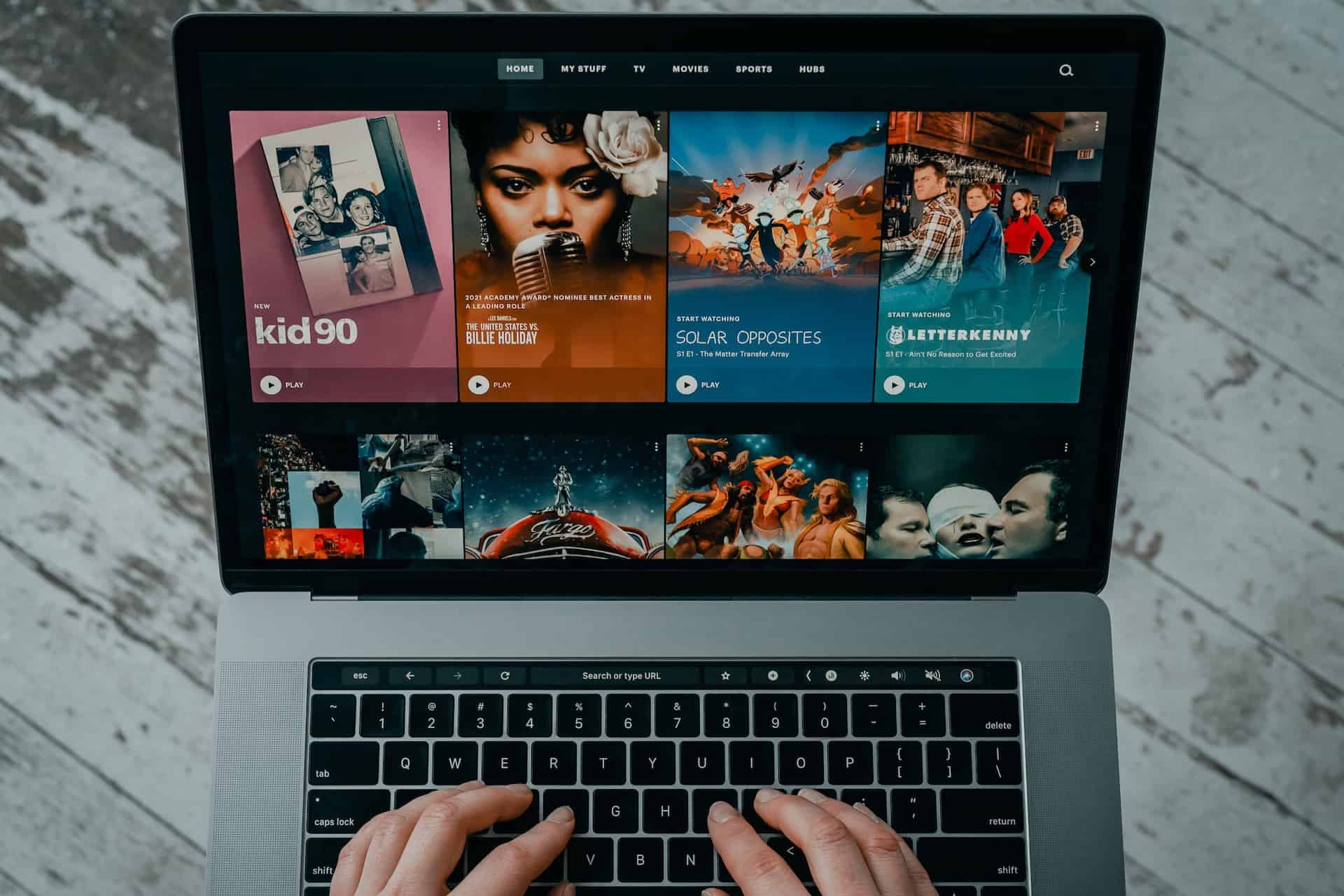
Additionally, we mentioned that the Plex media server experience offers something their competitors do not. It is free (sometimes ad-supported) access to radio, movies, TV shows, podcasts, web shows, and local news.
If you just need a media server application to organize and access content you already own, any of these three options will suffice. Kodi allows users to configure access to their subscribed third-party streaming services — Emby does not. That means Kodi and Plex could become your all-in-one streaming app depending on your needs.
Emby, Kodi, and Plex media servers can natively play or transcode almost any video and audio format you can imagine. It gives them extreme flexibility and true cross-platform compatibility.
However, not everybody will need the rich features offered by these apps. For most content consumers, paying for streaming music, TV, and film services is enough.
The target demographic for Emby, Kodi, and Plex media servers purchases CDs, DVDs, Blu-ray discs, and 4K UHD Blu-rays. Creating a fully streamable library of owned media is possible with these tangible copies. They can use disc-ripping software like iTunes, Handbrake, Audacity, VLC, EAC, WinX, or a similar program.
The primary benefits of collecting, curating, and streaming such a collection are twofold:
With all these definitions and caveats in mind, you’re ready to start streaming your content, your way! Media servers provide a sense of personal cultivation you don’t always get by scrolling algorithmically determined content in other apps. You might also use streaming services to inexpensively trial-run music, shows, and movies you’re considering adding to your personal collection.
However you decide to use your media server, have fun with it!