

Click the “Me” icon in your LinkedIn profile. Then, open Settings and Privacy from the dropdown menu. Under Account Preferences, click Display and select dark mode.
Everyone knows how powerful a tool LinkedIn is for all types of professionals. Users are able to build a vast network of connections that can potentially open up job opportunities in the future.
Founded in 2003 and with over 750 million active users, it’s no surprise that LinkedIn is consistently updating its site to include new features and capabilities.
One feature that’s making its way to LinkedIn is dark mode. Users can toggle between light and dark mode on LinkedIn to best suit their preferences. It’s a game-changer for the professional social platform.
The Microsoft-owned platform revealed earlier in 2021 that they’d allow users to switch to dark mode. As of September 12, 2021, LinkedIn announced that it’d gradually roll out its dark mode feature in some regions.
If you’re interested in using LinkedIn’s dark mode, continue reading to learn more about how to make the switch.
In simple terms, dark mode is a feature on some digital devices that provides a dark-colored background with light-colored text, icons and graphics overlaid. Dark mode can also be referred to as black mode, night mode, light-on-dark and dark theme.
One of the primary reasons for using the dark mode feature on your device is to reduce the light emitted from the device while also maintaining the minimum color contrast ratios.
Most devices come with light mode as the default. However, iPhones and Androids have the feature, and it’s a cool mode to turn to if you’re looking for a different color scheme.
If you consider yourself an active user on LinkedIn, you may want to try out this feature if it’s available in your region. You may enjoy the new feature and decide to use dark mode features across your social media accounts or devices.
Continue reading to learn more about how to turn on dark mode on LinkedIn.
Here are some basic benefits of using dark mode that you may not have been aware of before:
While dark mode may not be for everyone, it’s certainly worth trying out. If you realize you’d rather revert to light mode, it’s as simple as the push of a button.
So, how do you turn on dark mode on LinkedIn?
First and foremost, it’s important to address that changing your LinkedIn settings to dark mode will not change its interface — it will simply change the color scheme and general appearance of the platform.
Here’s how to turn on dark mode on LinkedIn on your desktop:
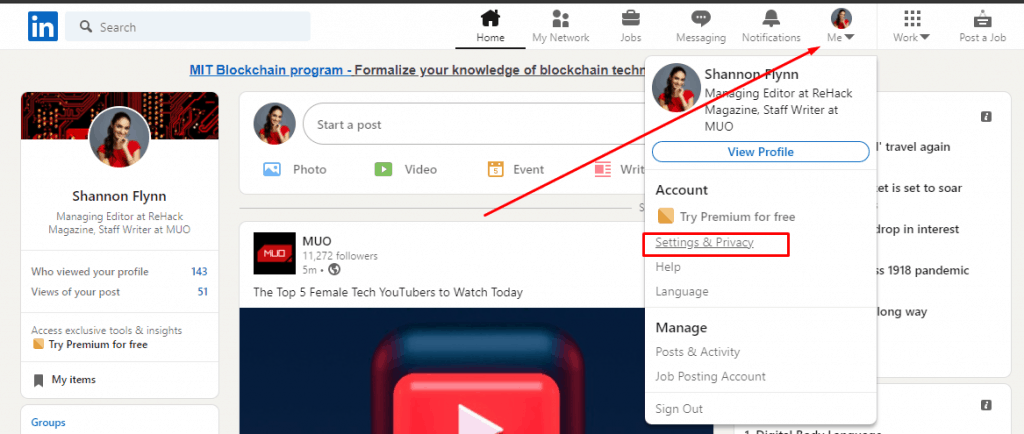
From there, you’re able to choose whether you’d like to save dark mode on the current device you’re using. Changes will be saved automatically.
On your mobile device, here’s how to turn on dark mode:
Then, you’ll be able to select if you want to display dark mode on your device. It’s as simple as that!
Consider using LinkedIn’s dark mode to potentially reduce eye strain and improve readability across your devices.
Like many social networking platforms, it was only a matter of time before LinkedIn implemented its new dark mode feature. Follow the instructions listed above to try out this cool new feature!











