

Learning how to cancel Amazon Prime membership is now quick and straightforward. Users who can no longer keep up with their long list of paid subscriptions can easily cancel their Prime membership in simple steps. Here’s how to do it.
You can cancel your Amazon Prime membership in different ways. Here are some methods to consider.
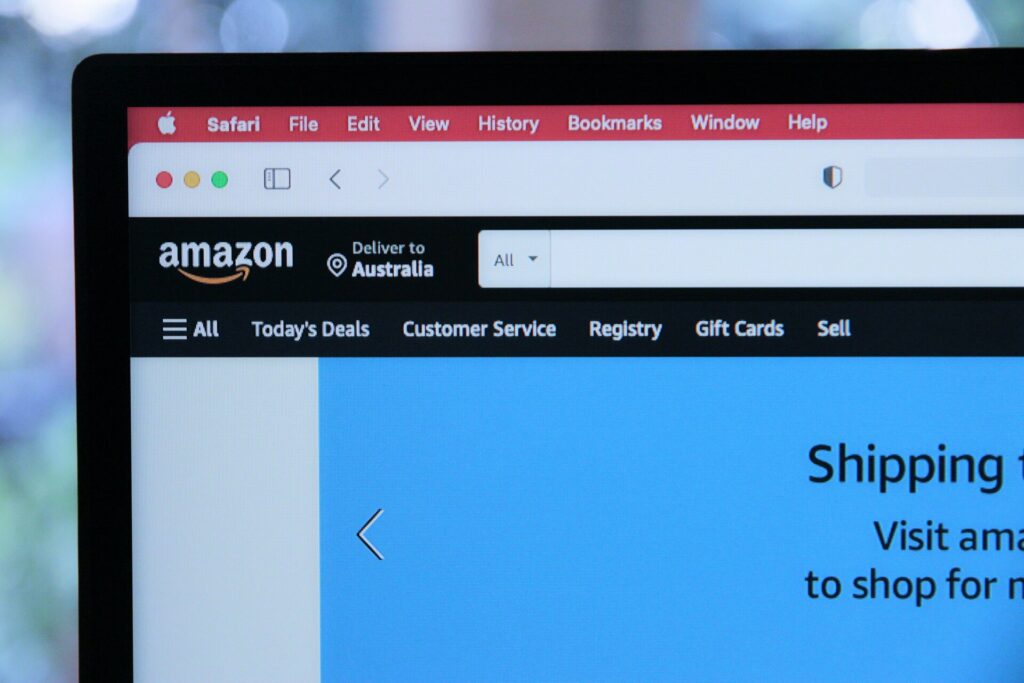
Head to the Amazon website and click the sign-in button under the “Accounts & Lists” section on the upper right side of the screen. Log in with your credentials to get started.
After signing in, head back to the “Accounts & Lists” section on the upper right of the screen. Select “Prime Membership.”
Click “Manage Membership” or the “Update, Cancel and More” section to direct you to the cancellation page.
Click “End Membership” under the “Membership” heading on the right side of the screen and wait for the page to load.
After clicking “End Membership,” Amazon will give you a run-down of the many benefits of being a valued member. There was even some news about the company using dark patterns to prevent users from canceling their accounts. Scroll past the content and click the “Continue to Cancel” or “Cancel My Benefits” button.
Amazon will again redirect you to a new page to confirm your cancellation. Click the “End On [date of cancellation]” button to finish the process.
Cancelling your Prime membership is the same on iOS and Android. Here’s how to do it.
Tap the three horizontal lines on the bottom right section of your screen. Select “Your Account.” You can also access the selection by tapping the Profile icon.
Scroll down to Account Settings, and click “Prime Membership.”
Find “Manage Membership” and click the section. Clicking it will direct you to another page. Scroll down and find “Manage Membership” again, where you can see the “Update, Cancel and More” section.
While on the Manage Membership page, click “End Membership” to process your cancellation. Amazon will again remind you of its membership benefits. Scroll past the content and click “Continue to Cancel.”
Amazon will direct you to another page to confirm your membership cancellation. Click the “End on [date of cancellation]” button to proceed to finalize the cancellation process.
Tip: You can still use the service if you have days left on your membership. Amazon will cancel all benefits at the end of your current billing cycle.
Amazon also has a video streaming service for interested customers. Whether it’s for switching streaming platforms or trimming down subscriptions, canceling your account is straightforward.
Access Amazon Prime Video on your computer and log in with your credentials.
After signing in, select “Accounts & Lists” on the top right of your screen. Under the drop-down menu, click “Your Prime Membership.”
Amazon will direct you to a new page. Hover to the right side and find the “Manage Membership” section. Click it and under the drop-down menu, look for “End Membership.”
Click “End Membership” to begin the cancellation process. Amazon will redirect you to different pages to give you a run-down of Prime Membership benefits. Ignore the content prompting you to reconsider and scroll down to find the “End Membership” button. Click it.
Clicking the button will confirm your Prime Video membership.
If you signed up for an Amazon Prime membership just to get the best deals during Prime Day 2023, you’re not alone. Many people gladly pay for a monthly or annual subscription to enjoy Amazon’s advertised perks. Here are some of them.
Amazon Prime is a paid subscription that gives users access to a wide range of products and services from the e-commerce giant. While many people would love to continue their membership and enjoy the benefits, others are keen on canceling their membership for personal reasons. Here are several of them.
Although Amazon offers many perks and benefits to paid users, they simply can’t avoid people leaving for personal reasons. Instructions on how to cancel Amazon Prime subscriptions should be accessible to every paying customer. After all, the customer is always right.











