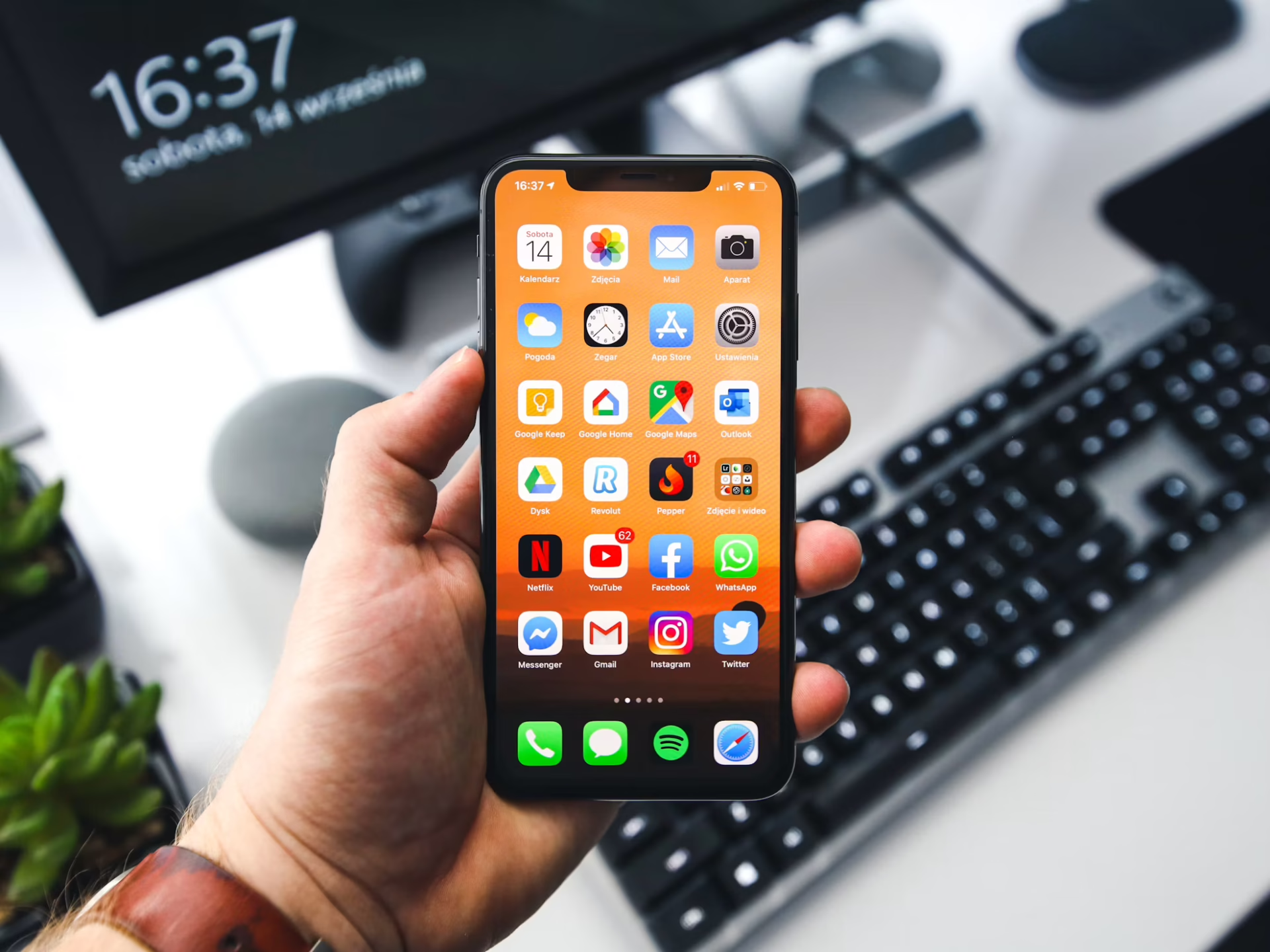

When you use your digital devices every day, it can be difficult to notice how often you check them or how much time you spend on certain apps. Tracking screen time can help you understand where it goes and identify habits you want to change. Apps and built-in device tools simplify the process by automatically tracking your usage and offering features such as app limits and scheduled breaks.
Screens now play a role in many everyday activities, from work and school to entertainment and social interaction. A 2026 Pew Research Center survey found that 53% of U.S. adults say they spend too much time on their smartphones. That figure rises to 70% among adults ages 18 to 29 and 64% among those ages 30 to 49.
While the amount of time you spend on screens matters, how that time fits into your day is worth noting too. Some screen use supports work, school, communication, planning and other everyday needs. Other periods can stretch into unplanned or idle use, such as doomscrolling, which can lead to poorer sleep quality and issues with focus and memory.
Looking at both your total screen time and the way you spend it can help you identify habits that may be affecting your sleep, focus or time away from your devices. Tracking your screen use gives you the information you need to spot patterns before you decide what you want to change.
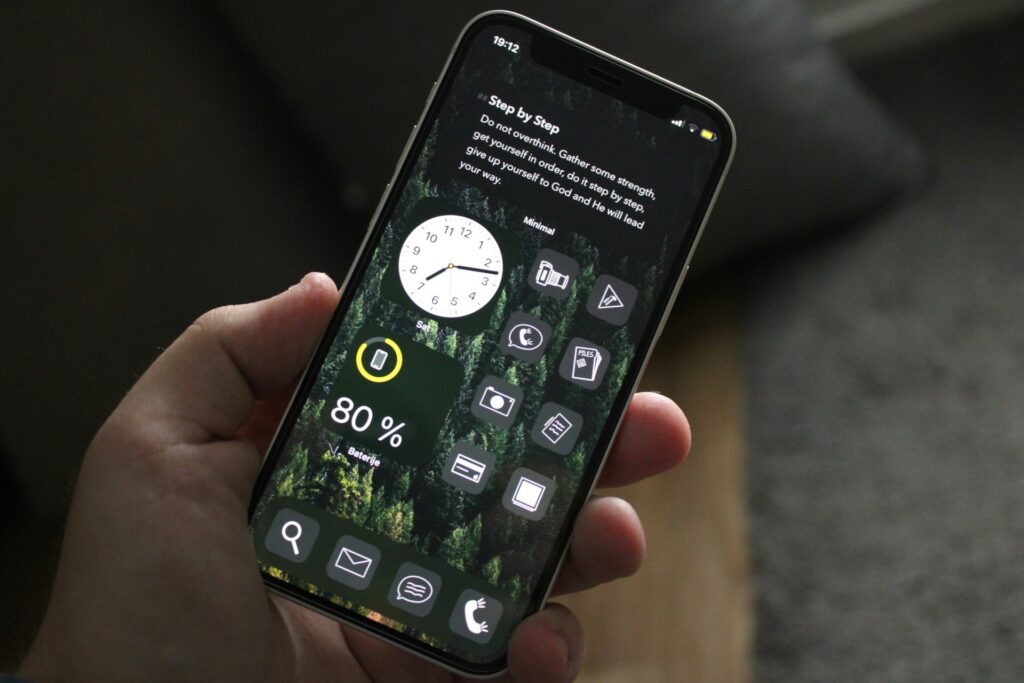
Different apps take different approaches to screen-time management. Some focus on tracking and reports, while others block distracting apps, encourage focused sessions or help you build new habits.
When seeking the right app, consider how you use your devices. Choose features that fit your needs and lifestyle, such as:
These apps offer a range of features to help you track your screen time more conveniently.
Apple Screen Time gives you built-in tools to monitor and manage device use on Apple devices. You can review app and website activity, see usage reports, set App Limits and schedule Downtime. During Downtime, you can choose to block restricted apps completely.
You can use App Limits for individual apps or broader categories, such as social networking and games. Downtime can also create recurring periods when you want fewer apps available.
Because the features are built into Apple’s existing settings, you can manage basic screen time controls alongside other device settings. It works particularly well if your main goal is to understand your usage and set simple boundaries within the Apple ecosystem.
AppBlock focuses on actively limiting distracting apps and websites. You can create schedules for work, study, sleep or relaxation and set usage limits that apply automatically. The app also provides statistics so you can review your app and website use.
Its Strict Mode adds another layer of control by making it harder to change or turn off active blocks. You can also use Allowlist features to keep essential apps accessible while restricting access to other apps.
AppBlock may suit you if you already know which apps or websites consume too much of your time and want stronger barriers around them. Its schedules can also help you create predictable boundaries around work, studying, evenings or sleep.
Freedom lets you create blocklists for distracting apps and websites and use them during timed sessions. You can select the devices you want to include, set a session length and use recurring sessions for repeated schedules. Freedom supports Mac, Windows, iPhone, Android and ChromeOS/Linux.
The cross-device approach can help if your distractions move between your phone and computer. You can create a blocklist that covers the websites and apps you tend to check and then activate it during a focused period.
Freedom also offers Locked Mode, which can prevent you from changing active sessions or removing items from active blocklists. This function can give you more structure when you want a set boundary to remain in place for the full session.
Forest takes a more visual approach to focused screen use. When you start a focus session, you plant a virtual tree that grows while you stay away from distracting apps. Leaving the session early causes the tree to wither.
You can use Forest as a simple way to make focused time visible. Its current features include a Pomodoro timer, app blocking, scheduled blocks and a focus timeline.
This approach can suit you if you respond well to visual progress and short, defined focus periods. It places greater emphasis on building a focused habit than on providing a detailed analysis of every minute you spend on your devices.
RescueTime automatically tracks the apps and websites you use on your computer and organizes that activity into reports. You can set goals, receive alerts and use Focus Sessions to block distracting apps and websites during designated periods.
Automatic tracking can help you spot patterns you might overlook when estimating your own screen use. RescueTime records the active app or website and how long you spend using it, giving you a detailed picture of where your computer time goes.
RescueTime may suit you if you want deeper insight into your digital activity, particularly when much of your screen time happens on a computer.

Apps work best alongside everyday habits and device settings. For instance, reducing notifications can address interruptions at their source. A study found that participants responded more slowly on a cognitive task when they heard smartphone notification sounds, indicating the need for better control of these features.
To build better screen use habits, start with these tips:
Screen-time balance starts with understanding how your devices fit into your daily life. Once you know which apps, websites and activities take up your time, you can choose the right app or tool to track and manage your screen use. Better screen-time habits can help you use your digital time more intentionally and create healthier boundaries around your devices.