YouTube Premium is a popular subscription service that offers ad-free viewing, offline downloads, and the ability to listen to YouTube Music in the background. However, if you find that you no longer need the service or simply want to save some money, learning how to cancel YouTube Premium (or Red) is essential. This guide will provide you with step-by-step instructions on how to cancel YouTube Red on various devices, ensuring you can navigate the process smoothly.
To cancel your YouTube Premium subscription and move to an alternative, follow these brief steps:
If you’re using the YouTube mobile app on an iPhone, iPad, or Android device, the process is quite straightforward. Here’s how to do it:
Launch the YouTube app on your mobile device. You will land on your YouTube home screen.

Tap on your profile icon located in the upper right corner of the screen to open the menu.

Select “Paid Memberships” from the menu. This will take you to the Memberships screen.

Tap on your active YouTube Premium subscription. A screen with details about your subscription will appear. Tap “Manage”.
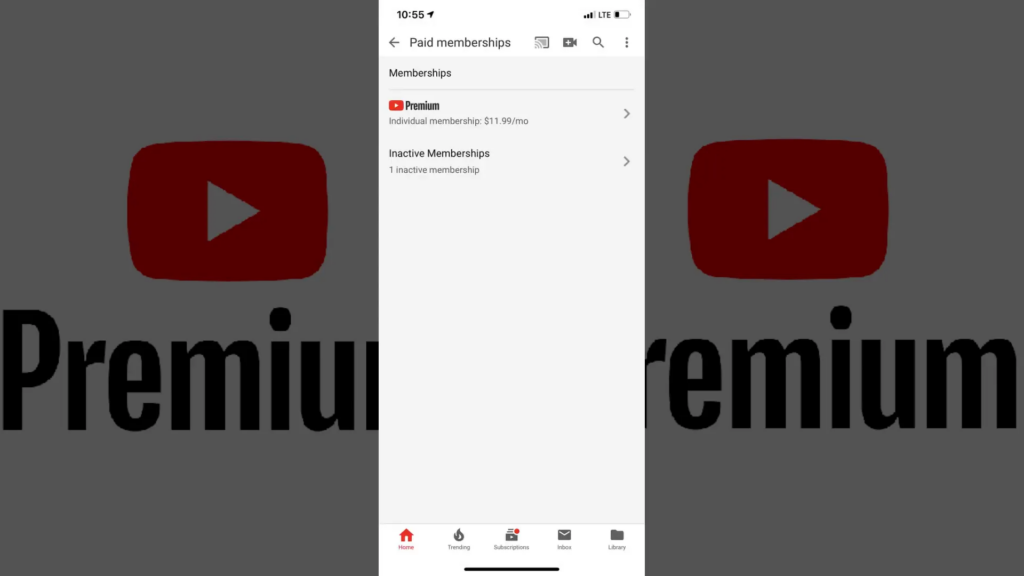
Tap your active YouTube Premium subscription again to expand the section. From there, select “Deactivate”. A prompt will ask if you want to pause your subscription instead.

Click “Continue to Cancel” to proceed. A dialog box will appear asking why you are cancelling. Choose your reason and click “Next”.

Finally, click “Yes, Cancel” to confirm your cancellation. A dialog box will inform you that your subscription is cancelled. Click “Close” to finish.

If you prefer to cancel your subscription using a computer, follow these steps:
Navigate to YouTube.com and log into your account if prompted. You will arrive at your YouTube home page.

Click your profile icon in the upper right corner of the screen to open the menu.
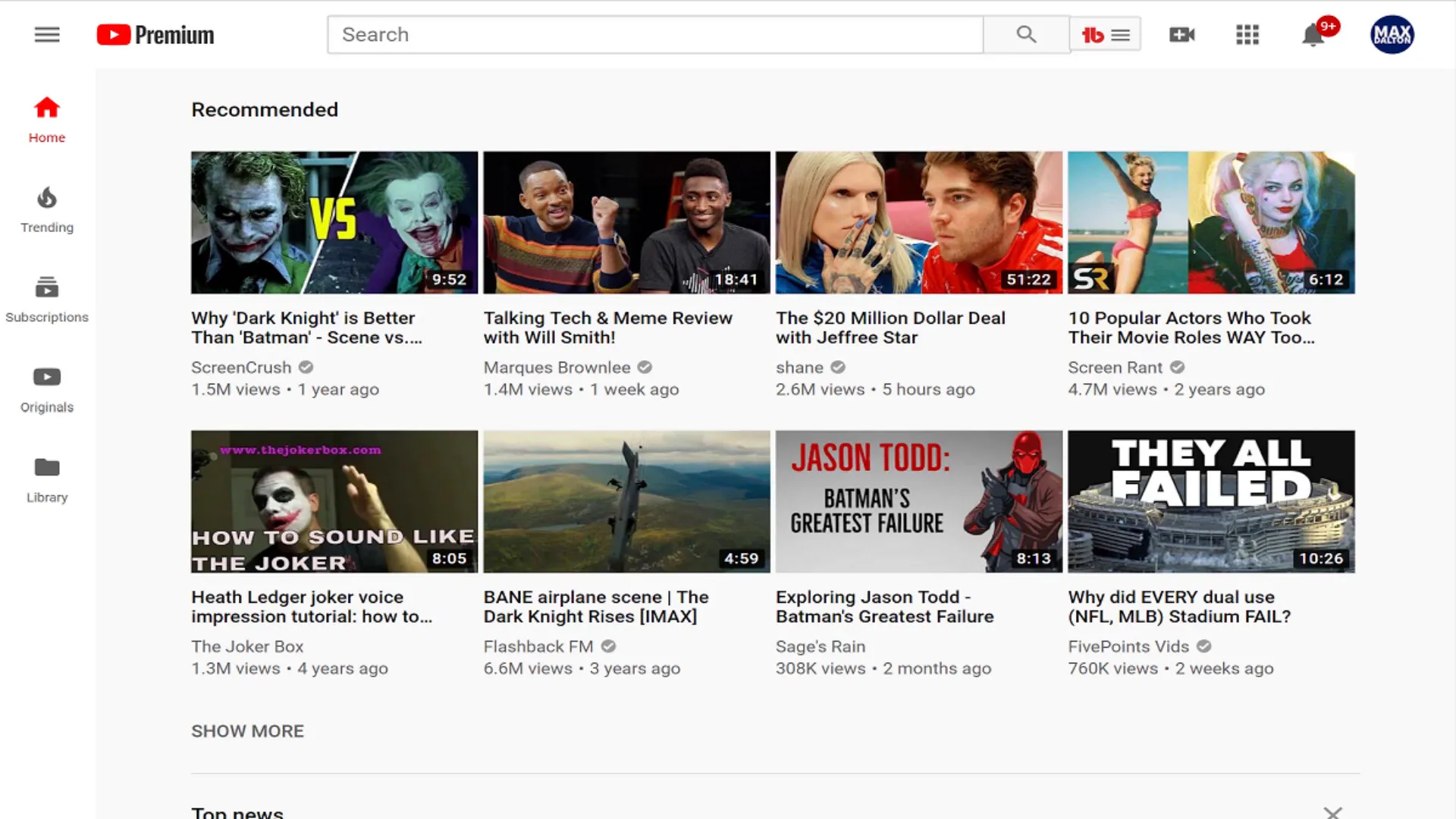
Click “Paid Memberships” from the menu. This will display your current memberships.
Click “Manage Membership” next to your active YouTube Premium subscription. This will open a drop-down menu.
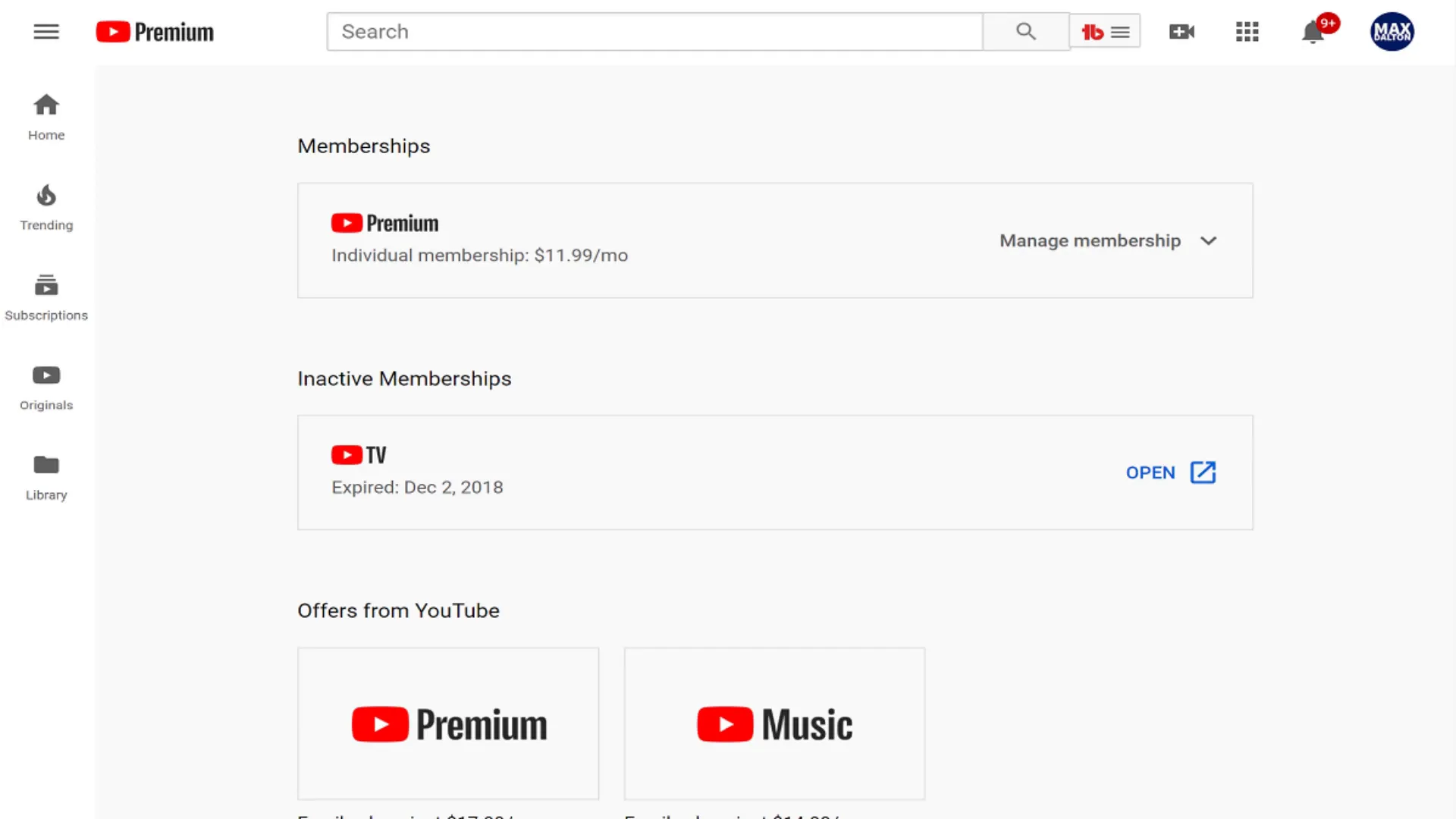
Click “Deactivate” in the drop-down menu. A prompt will ask if you want to pause your subscription instead.
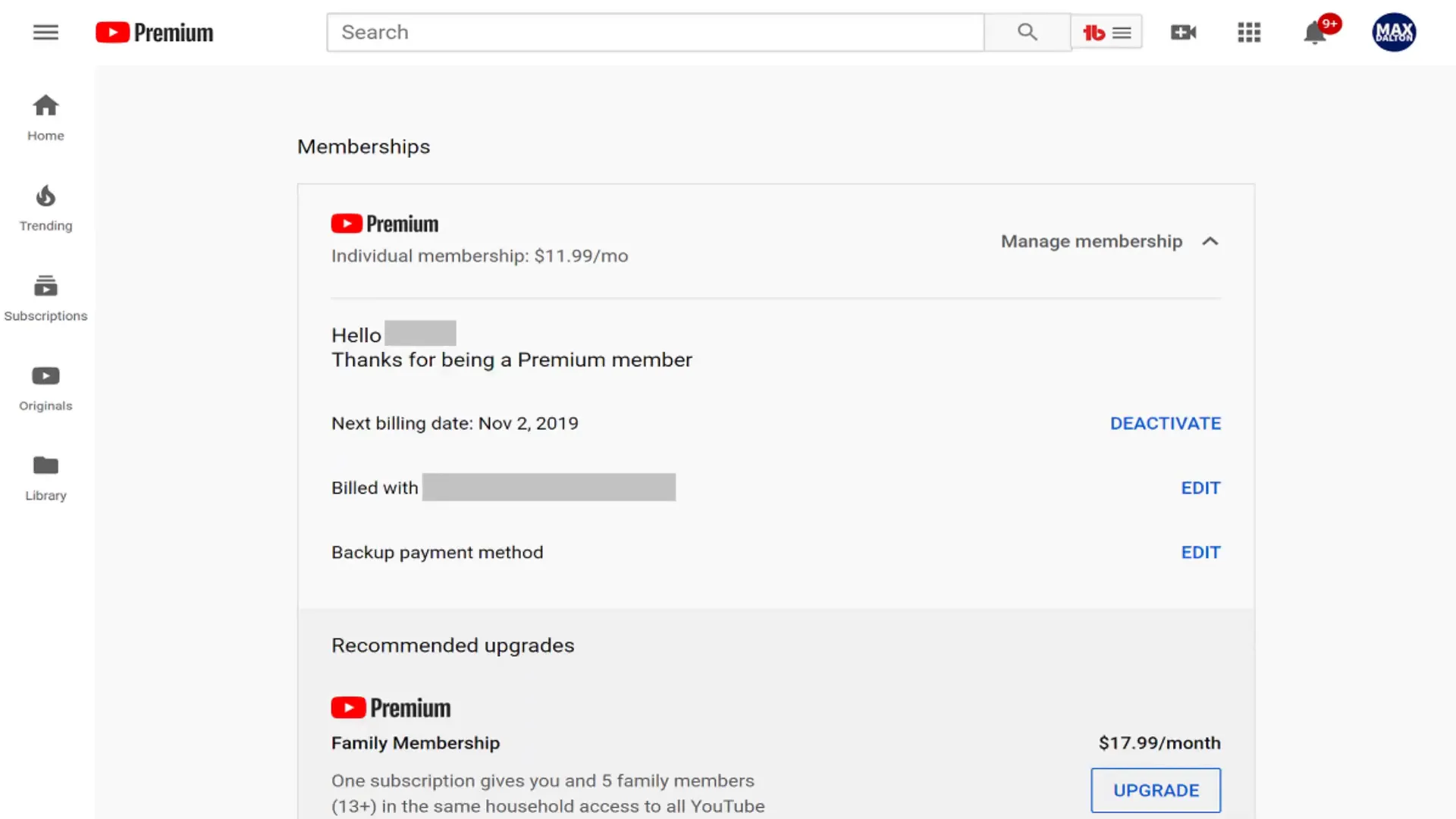
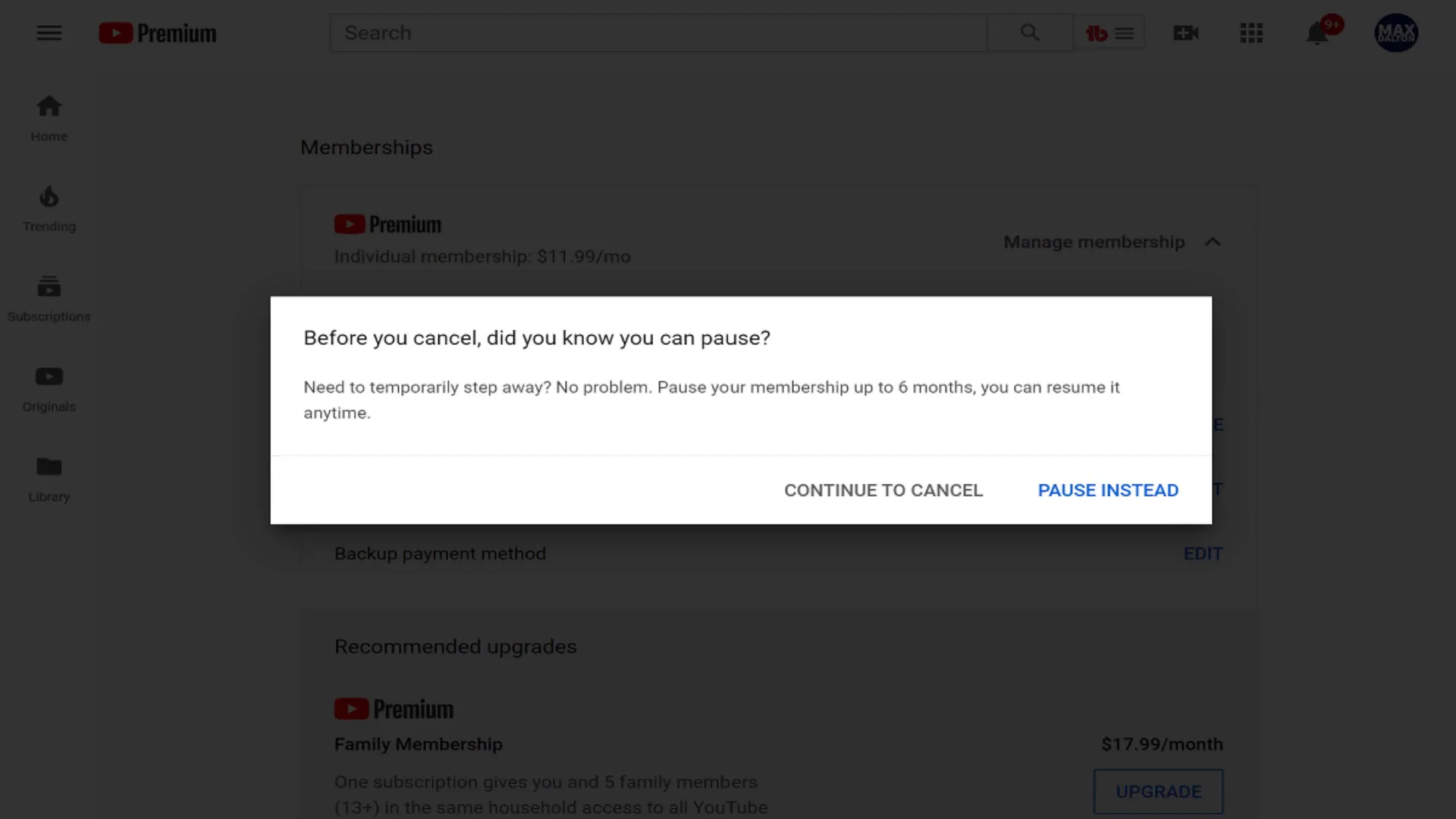
Click “Continue to Cancel”. A dialog box will ask you why you are cancelling. Choose your reason and click “Next”.
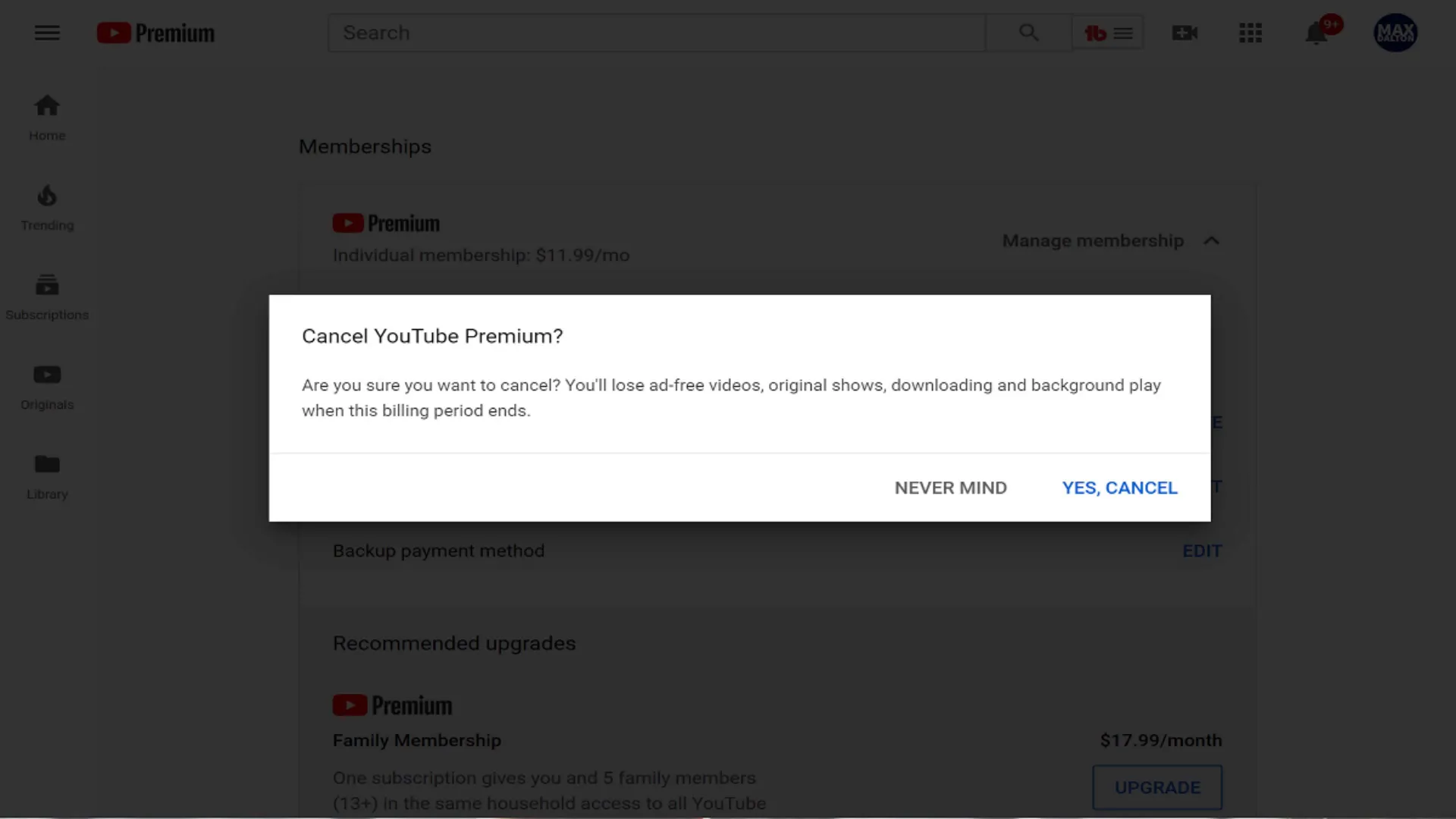
Click “Yes, Cancel” to confirm your cancellation. A dialog box will inform you that your subscription is cancelled. Click “Close” to finish.
As users evaluate their subscriptions, several reasons have emerged for why people choose to cancel YouTube Premium. Here are some common concerns:
Before you hit that cancel button, consider these important steps:
Once you cancel, several changes will take effect:
Yes, you can cancel at any time during your billing cycle.
Your playlists will remain, but you won’t be able to access premium features like offline downloads.
Yes, you can reactivate your subscription at any time by following the same steps for subscribing.
No, you will not be charged for the next billing cycle if you cancel before the billing date.
Deciding whether to cancel YouTube Premium depends on your usage and value derived from the service. If you find that you are not utilizing the benefits enough, it may be time to cancel. Remember to back up your playlists and explore alternatives before making your final decision. Whether you choose to stay or go, we hope this guide on how to cancel YouTube Premium has been helpful!
Original Publish Date 5/16/2019— Updated 10/6/2024