

The CRITICAL_PROCESS_DIED error is a startup error that sometimes occurs with Windows computer software. As with other Windows startup errors, it gets accompanied by a blue screen and a frowny face to emphasize the error’s severity. It usually indicates a problem during an update, but sometimes the issue is hardware related. Here are five tried and true ways people have fixed the Critical Process Died error for Windows 10 and Windows 11.

If you encounter the blue screen above, the first solution you should try is a Safe Mode restart. Turn off your PC by holding down the power button for more than ten seconds. After a few minutes, turn the PC back on and turn it off again while it’s still rebooting. You will probably need to repeat these steps a few times to ensure the right screen appears.
Once you’ve completed these steps, give the PC time to restart. It might take more than a few minutes, so be patient and don’t interrupt the process.
If you’re able to access the Start menu, try updating your PC’s drivers. Drivers are collections of files that communicate with the PC’s operating system to help the hardware function as intended. The files might get corrupted or can be incompatible with a new software update.
GO back into the Device Manager section and repeat the process with the other drivers if the error still persists. Sometimes the PC fails to identify all of the problematic drivers and only manages to find one.
You can also use third-party driver update apps to update all the drivers in one fell swoop. However, you won’t be able to install these apps while the Critical Process Died error lingers.
Another way to fix corrupted system files is by running a System File Checker (SFC) scan. You also need to have access to the Start menu for this solution to work.
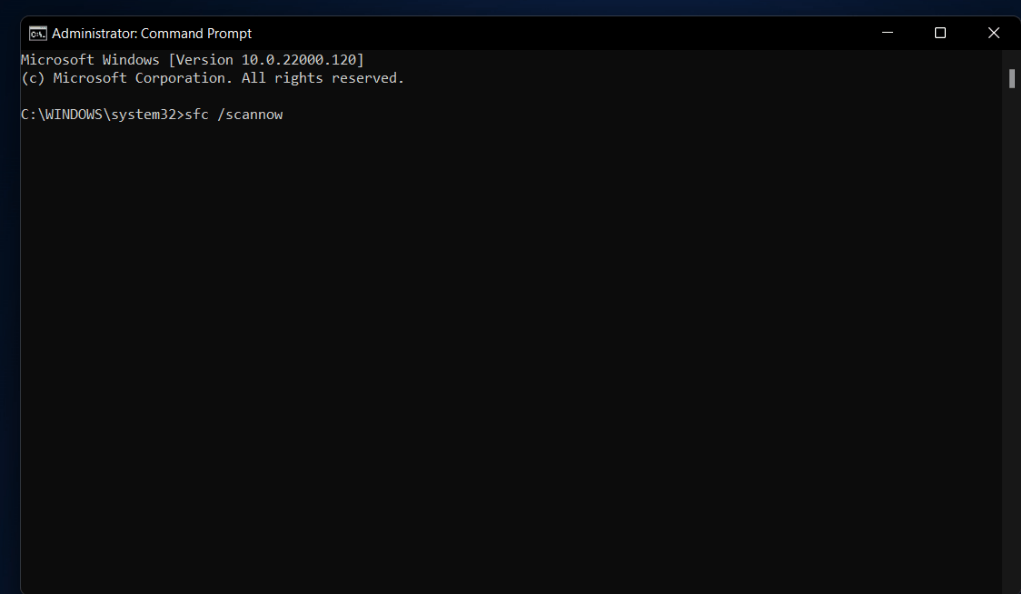
Give the PC as much time as necessary to complete the scan. DO NOT close the command prompt. If the scan works, it will report any corruptions and help you narrow down or even identify the source of the error.
The Deployment Image Servicing and Management (DISM) tool is similar to the SFC scan. Navigate to Command Prompt page just like before, then follow these steps:
Let the commands run for a few minutes, then restart the PC when the process is complete. It should identify and wipe away corrupted files that are causing the error.
If all else fails, you need to reset your PC back to its default state. That means all personal files, updates, customizations and other features will get wiped away. This solution has the best probability of working, but you also lose everything on the PC in the process. Losing all of your files might stink, but it’s better than buying a new PC.
Startup errors happen to Windows users all the time for various reasons. A Critical Process Died error is one of the most common. If these five solutions don’t fix the error, then your PC’s hardware is probably damaged. Bring it to a tech shop or demolish it in the backyard – whichever course of action you prefer.











