

Dealing with an unresponsive iPhone can be incredibly frustrating. You reach for your phone, expecting to check a message, only to find it won’t turn on. Don’t worry; you’re not alone in this situation, and there are steps you can take to bring your device back to life. Knowing how to troubleshoot this problem can save you time and stress.

Imagine being stuck without your phone when you need it most—whether it’s for an important call or to capture a special moment. It’s a common scenario that can leave you feeling helpless. Fortunately, there are several tips you can try that may help revive your iPhone and get it working like normal again.
So if your iPhone won’t turn on, stay calm. There are effective methods to troubleshoot the issue. With the right approach, you can soon be back to using your device without the hassle of having to seek professional help.
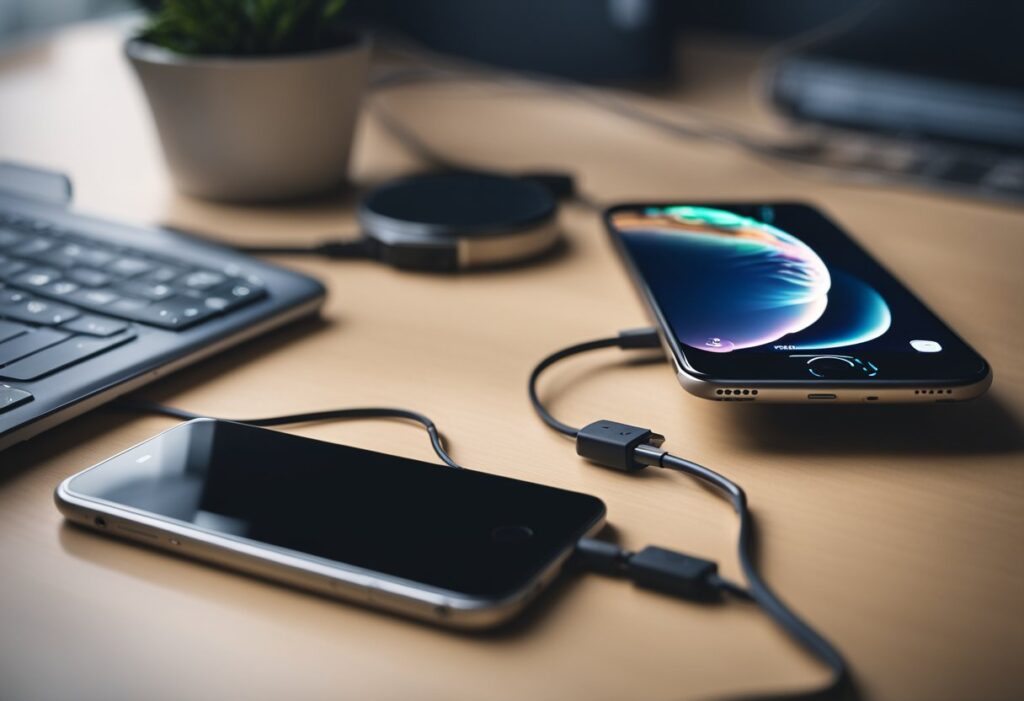
If your iPhone won’t turn on, the first steps involve checking the charge level and inspecting your charger and cable. These actions can help identify the problem quickly.
Start by ensuring your iPhone has enough power. Connect it to a charger and look for the charging icon on the screen. If the battery was completely dead, it might take a few minutes before any signs appear.
Tips to check charge level:
If your phone still doesn’t respond, it might not just be a charging issue.
Next, examine your charging accessories. Sometimes the problem is not with the iPhone itself but with the charger or cable.
Things to check:
If you notice any damage, replace the charger or cable. Using Apple-certified accessories can help prevent future charging issues.
If your iPhone won’t turn on, a forced restart might help. Here are the steps based on your iPhone model:
iPhone 8 and later:
For iPhone 7 and 7 Plus:
iPhone 6s and earlier:
Software problems can prevent your iPhone from turning on. Identifying glitches and keeping your iOS updated are critical steps to resolving these issues effectively.
Software glitches can happen after an update or due to app conflicts. If your iPhone doesn’t turn on, try to restart it by pressing and quickly releasing the Volume Up button, then the Volume Down button. Finally, press and hold the Side button until you see the Apple logo.
If this doesn’t help, it might be due to an app or system crash. You can also check for low battery indicators. Make sure your device is charged for at least an hour before trying to power it back on. If the iPhone still fails to respond, consider connecting it to a computer for further troubleshooting.
Keeping your iOS updated can fix bugs that cause your iPhone to malfunction. To check for updates when your device is working, go to Settings > General > Software Update. If there’s an update available, tap “Download and Install.”
When your iPhone won’t turn on after an update, try a force restart as described above. If problems persist, you may need to restore your device using a computer. Connect your iPhone, open iTunes or Finder, and follow the prompts to restore. Be sure to back up your data before attempting a restore to avoid losing information.
If your iPhone won’t turn on, hardware damage could be the cause. Here are some common signs of hardware issues:
Here are six tips to help you revive your iPhone in case of potential hardware damage:
Taking steps early may save your device from permanent damage.
When your iPhone won’t turn on, it can be frustrating. Various common issues may cause this problem, but there are several specific steps you can take to troubleshoot and resolve them. Here are some answers to frequently asked questions regarding iPhones that aren’t powering on.
First, try a force restart. For iPhone 8 or later, quickly press and release the volume up button, then the volume down button, and finally press and hold the side button until the Apple logo appears.
If that doesn’t work, charge your iPhone for at least 30 minutes. Then, try turning it on again. If nothing happens, there may be a hardware issue.
If your iPhone is stuck on the Apple logo, perform a force restart. Follow the same steps as before. If the issue persists, you may need to restore the iPhone using iTunes or Finder in recovery mode.
To enter recovery mode, connect your iPhone to your computer, open iTunes or Finder, and select your device. Then follow the prompts to restore it.
If your screen is black, first check if your iPhone is charged. Plug it in and wait for a while.
Next, try a force restart. If that doesn’t help, connect your device to a computer and see if it is recognized. If it is, you may need to update or restore it through iTunes or Finder.
An unexpected shutdown could be due to several reasons, like a software glitch or battery failure.
Start by charging your iPhone for up to an hour. If it still doesn’t respond, it may require a force restart or further diagnosis to check for hardware issues.
If your iPhone won’t turn on while charging, make sure to check your charging cable and adapter for damage.
Try using a different charger or outlet. If the iPhone shows no signs of charging, let it charge for a longer time, as the battery may be deeply discharged.
If your iPhone is frozen, start with a force restart as the first step.
When you try this and it doesn’t work, try connecting it to a computer and using iTunes or Finder to check if it reacts. If you can access it, consider restoring it to fix the freeze.
Original Publish Date 7/12/2018 — Updated 10/2/2024











