

Apple’s iMessage is one of the most popular messaging platforms because of its seamless integration across iPhones, iPads and Macs. However, accessing iMessage on Windows can be slightly more difficult if you’re a PC user. Though it is possible to set up, some methods are easy, while others require more technical know-how.
If you’re a full-on Apple user, you already know how seamlessly iPhones and MacBooks work together. Syncing iMessages and sharing files through AirDrop through Apple makes it easy to keep everything connected. But things get a little trickier if you’re a Windows user with an iPhone. Apple has had zero intentions to officially support iMessage on Windows, so users must find different workarounds to fulfill their needs.
Many people are Windows and iPhone users. Windows dominates the desktop operating system market with a 72% global market share. Simultaneously, iPhones hold the largest share of the mobile vendor market at around 27%, but getting the two to work together isn’t as straightforward as it should be.
The good news is that you can use iMessage on Windows. While not officially supported, there are several ways to make it happen. One of the easiest methods is to use Microsoft’s Phone Link app, which now promotes iMessage integration for iPhone users. This feature allows you to send and receive messages on your PC with minimal setup.
Windows 11 has a Phone Link app that lets you connect your iPhone to your PC. This method will allow you to send and receive iMessages directly from your computer. The app pairs your iPhone via Bluetooth and displays your messages and notifications on your PC. It’s an excellent option for staying connected without constantly switching between your phone and computer.
However, Phone Link has some limitations. While you can create and reply to new messages, you won’t be able to view or respond to older texts that weren’t made on your computer. Group chats and multimedia messages are also unavailable. You’ll receive notifications for these types of messages, but you can’t view them within the app.
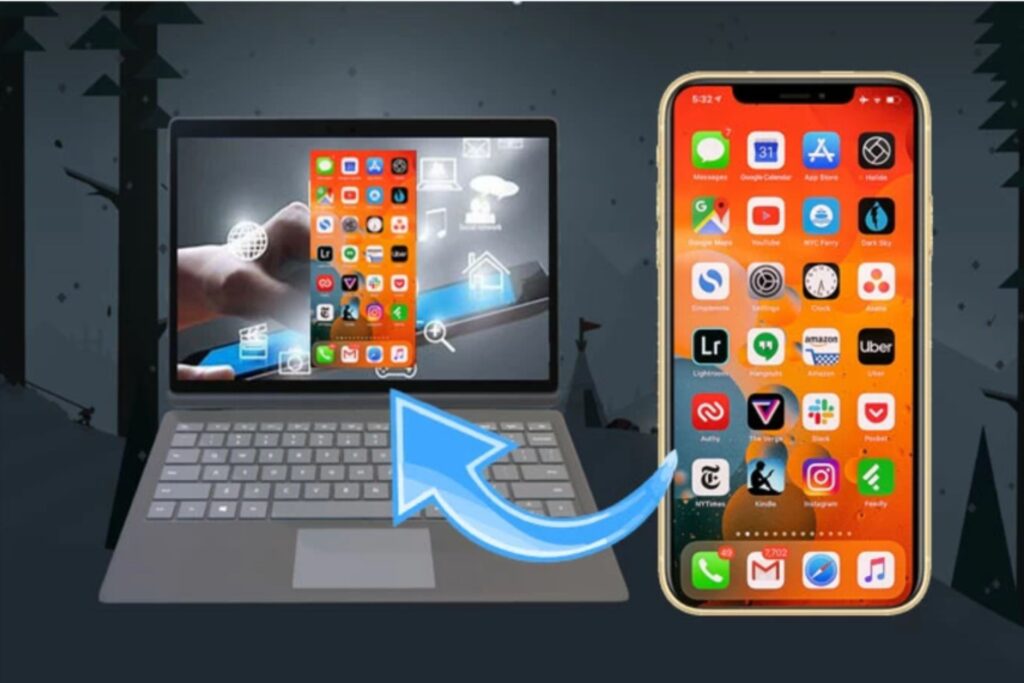
Screen mirroring is another way to use iMessage on Windows. This method involves projecting your iPhone’s screen mirroring onto your PC, allowing you to interact with your phone’s apps. While not as seamless as other methods, screen mirroring is a practical workaround for accessing your texts.
Screen mirroring works using apps like AirDroid Cast, AirServer, Reflector and LonelyScreen. Once set up, you can open the iMessage app on your iPhone and interact with it as you normally would. However, you can see everything using your PC’s display. While you still need to use your iPhone’s touchscreen or connect a compatible keyboard and mouse, this setup makes your PC an external monitor for your iPhone.
For those without access to a Mac but still want to use iMessage on PC, setting up a virtual machine (VM) can be viable. This approach creates a virtual Mac environment on your Windows PC, allowing you to install and use iMessage as though you were on a real Mac. While it’s a more technical solution, it offers full access to iMessage without needing Apple hardware.
A VM works through software that mimics the functionality of a physical computer. By installing macOS on a VM using tools like VirtualBox, you can access macOS apps like iMessage from your PC.
Sometimes, accessing iMessage on Windows can feel too complicated or restrictive. Rather than using this method, you can try a cross-platform messaging app as an alternative. Apps like Signal, Telegram and WhatsApp offer secure messaging that works seamlessly across Windows, macOS, Android and iOS. These platforms support group chats, multimedia messaging, voice calls and end-to-end encryption.
These options are excellent because they are compatible with multiple devices. While they don’t replicate iMessage’s integration with Apple’s ecosystem, they eliminate the limitations of platform exclusivity. They are straightforward, and you can easily switch between your PC and iPhone to gain a consistent experience.
You have several ways to use iMessage on Windows — it’s only a matter of which method you choose. Microsoft Phone Link would be the easiest setup, but the best approach depends on your needs and available resources.











